On this page
Importing Transactions with Upload Templates
Updated 31 October 2026
When you have many transactions to enter, for example a batch of invoices or journals from another system, you can import them from a spreadsheet instead of entering each one.
What you can import
Each list has its own import button and its own template:
| Import | Where | Button |
|---|---|---|
| Sales Invoices, Sales Credits, Sales POAs | Aedon.Sales | Import Transactions |
| Purchase Invoices, Purchase Credits, Purchase POAs | Aedon.Purchases | Import Transactions |
| Manual Journals, Budget Journals | Aedon.Journals | Import Transactions |
| Accounts | Accounts tab in Aedon.Sales or Aedon.Purchases | Import Accounts |
| Products | Products tab in Aedon.Sales or Aedon.Purchases | Import Products |
| Financial Years, Periods | Aedon.Setup | Import Financial Years, Import Periods |
Import transactions
- Open the list you want to import into, for example the Manual Journals tab, and click Import Transactions.
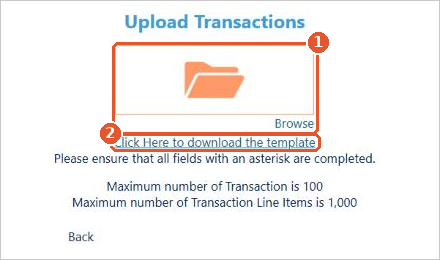
- On the Upload Transactions page, click Click Here to download the template(2).
- Fill in the template, one row for each transaction line. Fill in every column marked with an asterisk.
- Click the folder or Browse(1) and choose your completed file.
- Check the imported transactions before you post them.
Limits and rules
- Up to 100 transactions, and up to 1,000 transaction lines, in each file.
- Always start from the template downloaded from the list you’re importing into, as each template has its own columns.
- Budget journals must have the Layer filled in. See Budget Layers.
- Names you enter, such as accounts, products, nominal codes and tax codes, must match the records in Aedon.Accounting exactly.
Test with a small file first
Import two or three transactions first and check them. Then import the rest.