Recurring Sales and Purchase Invoices
Updated 31 October 2026
A recurring invoice raises the same sales or purchase invoice on a regular schedule, such as a monthly subscription, rent or a service contract. You set it up once, and Aedon.Accounting creates each invoice on its date.
Recurring sales invoices are on the Recurring Sales Invoices tab in Aedon.Sales, and recurring purchase invoices on the Recurring Purchase Invoices tab in Aedon.Purchases. They work in the same way.
Step 1: Choose the account and invoice pattern
- On the recurring invoices tab, click New.
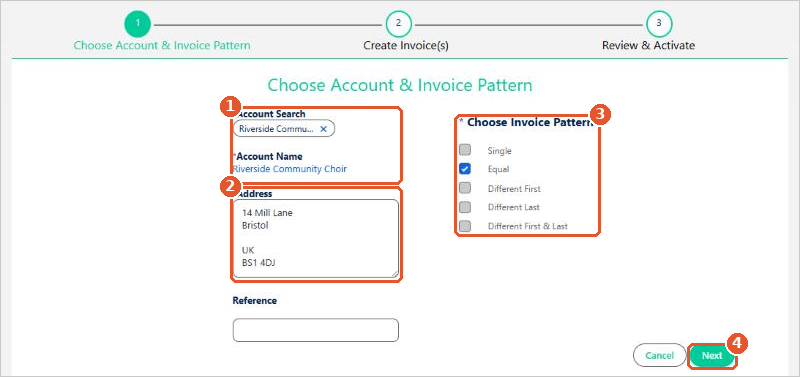
- Search for and choose the account(1). Its address is filled in(2); change it if necessary. Add a Reference if you want one on every invoice.
- Choose the Invoice Pattern(3):Single: one scheduled invoice.Equal: every invoice is for the same amount.Different First, Different Last or Different First & Last: the first or last invoice is for a different amount, for example a part month at the start or end of a contract.
- Click Next(4).
Step 2: Create the invoice
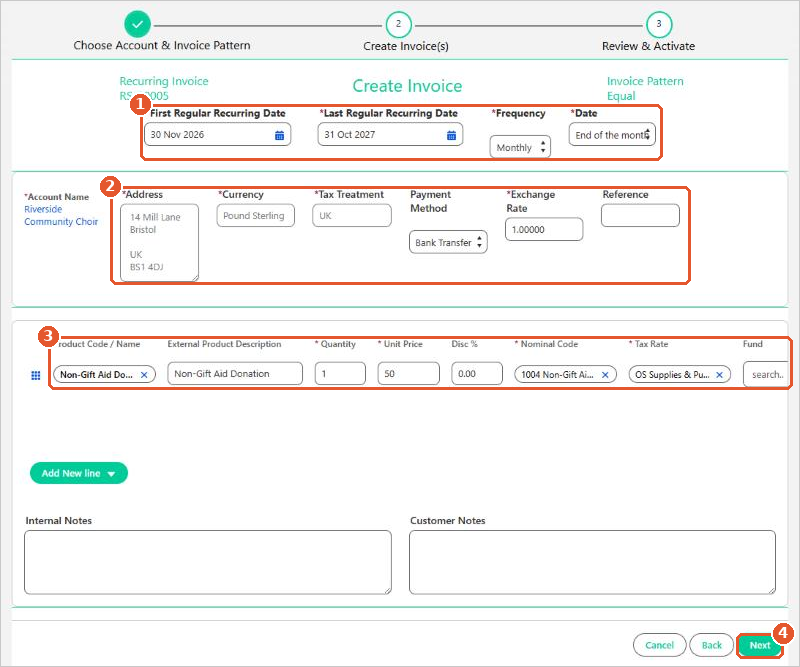
- Enter the First Regular Recurring Date and Last Regular Recurring Date, and choose the Frequency (Monthly, Weekly, Quarterly, Half Yearly or Yearly) and the Date in the month, such as End of the month(1).
- Check the invoice details(2): Currency, Tax Treatment, Payment Method, Exchange Rate and Reference.
- Add the invoice lines(3), as on a normal invoice: product, quantity, unit price, nominal code, tax rate and analysis codes. Use Add New line for more lines. Product defaults from the account aren’t added to recurring invoices.
- If necessary, add Internal Notes and Customer Notes.
- Click Next(4).
Step 3: Review and activate
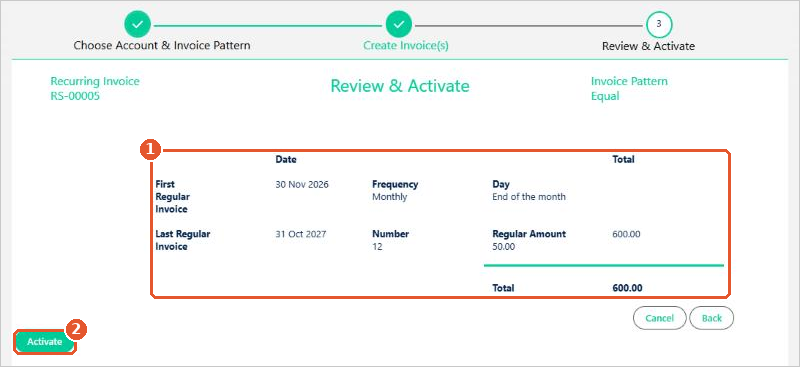
Check the summary(1): the first and last invoice dates, the frequency, the number of invoices, the regular amount and the total. Click Back to change anything, then click Activate(2).
The recurring invoice is saved as you go
The recurring invoice is saved as a Draft as soon as you leave step 1. If you cancel, delete the draft from the recurring invoices tab.
After activation
Each invoice is created on its date by a scheduled job, and listed on the recurring invoice under Scheduled Sales Invoice Headers with its posting status. The recurring invoice’s Status shows whether it is Activated, On Hold, Deactivated or Completed.
The scheduled jobs are set up by your Salesforce administrator. See Scheduling Jobs for Recurring Transactions.