On this page
Creating a Purchase Invoice
Updated 31 October 2026
Create a Purchase Invoice
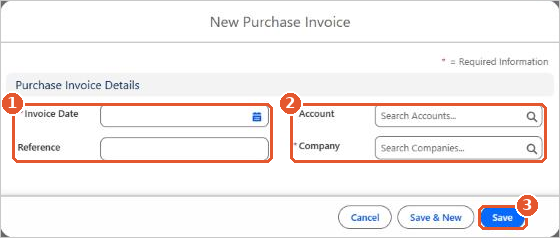
- Open Aedon.Purchases, click the Purchase Invoices tab and click New.
- Enter the Invoice Date, and if necessary the supplier’s invoice number as the Reference(1).
- Choose the Account (the supplier) and the Company(2), then click Save(3).
The draft invoice opens, with the due date, currency, address and payment method filled in from the supplier.
- If necessary, change any of those defaults, and add Internal Notes.
- In Purchase Invoice Line Item(s)(2), click +(3) to add a line. Choose a Product, or enter a description, the Quantity, Unit Price, Nominal Code and Purchase VAT, and add any analysis codes such as fund or project.
- Click the save icon above the lines(3).
- Check the Gross Amount matches the supplier’s invoice, then click Post(1).
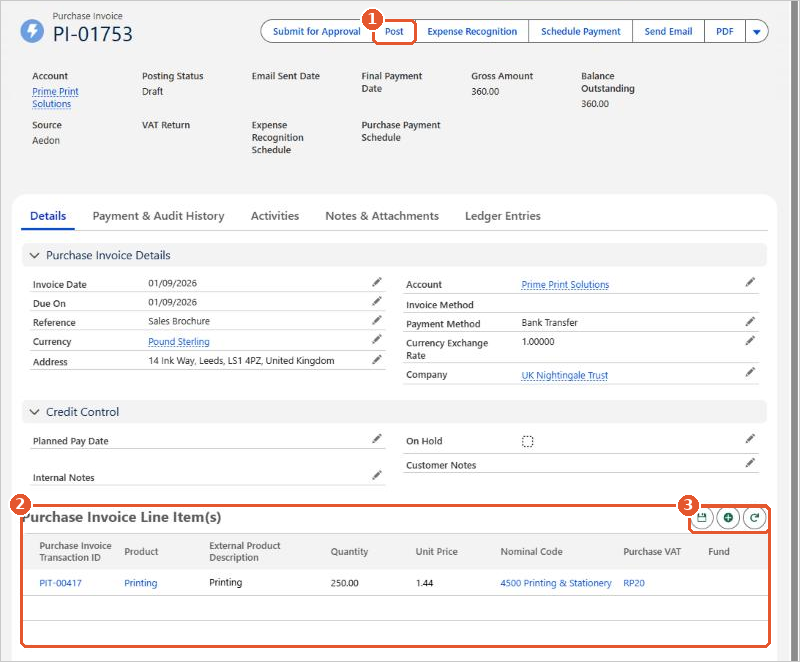
Once posted, the invoice is added to Accounts Payable, ready to pay. See Paying a Purchase Invoice.