On this page
Scheduling Jobs for Recurring Transactions
Updated 31 October 2026
Aedon.Accounting’s recurring and scheduled transactions, such as recurring invoices, revenue recognition and auto-reversing journals, are created by scheduled Apex jobs. A Salesforce administrator schedules each job once, choosing how often it runs.
Aedon jobs
| Process | Apex class to schedule |
|---|---|
| Sales Payment Schedules | scheduledSalesPaymentBatch |
| Purchase Payment Schedules | scheduledPurchasePaymentBatch |
| Revenue Recognition | scheduledSIRevenueRecognitionBatch |
| Expense Recognition | scheduledPIRevenueRecognitionBatch |
| Recurring Sales Invoices | scheduledRecurringSalesInvoicesBatch |
| Recurring Purchase Invoices | scheduledRecurringPurchaseInvoicesBatch |
| Recurring Journals | scheduledRecurringJournalBatch |
| Auto Reversal of Manual Journals | scheduledAutoReversalManualJournalBatch |
Schedule a job
- In Setup, enter Apex Classes in the Quick Find box and select Apex Classes.
- Click Schedule Apex.
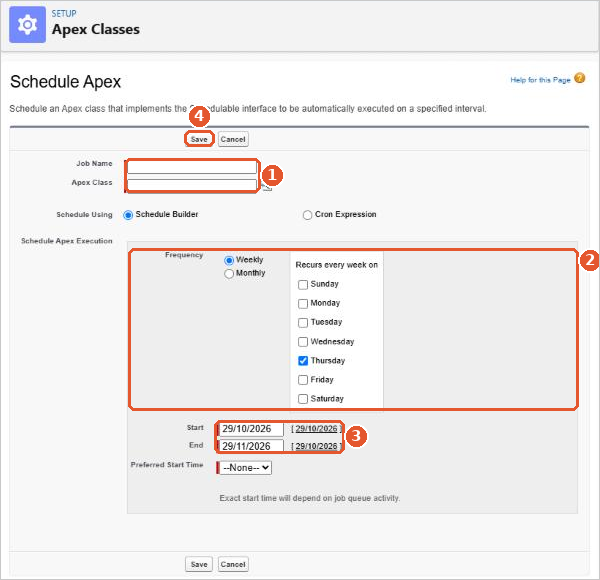
- Enter a Job Name, for example
Aedon Recurring Sales Invoices. - In Apex Class(1), choose the class from the table above.
- Choose the frequency(2), the start and end dates(3) and the preferred start time.
- Click Save(4).
To check your jobs, enter Scheduled Jobs in the Quick Find box. Each job is listed with its next run time. To change a job’s timing, delete it there and schedule it again.
Bank feeds
The times that bank feeds are collected are also set by scheduled jobs. Changing them is a task for a Salesforce administrator.
Salesforce help
For the details, see Salesforce’s own help: