On this page
Creating a Sales Order
Updated 31 October 2026
A Sales Order records what a customer has ordered before you invoice it. It doesn’t post to the ledger. When you’re ready to bill, you convert it to a sales invoice.
Create a sales order
- Open the Sales Orders tab in Aedon.Sales and click New.
- Enter the Order Date(1) and, if necessary, a Reference(2).
- Choose the Account(3) and the Company(4).
- Click Save.
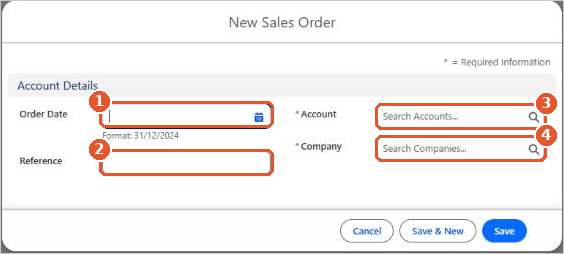
The sales order opens as a Draft. The customer’s currency, address and other defaults are filled in from the account.
Add the lines
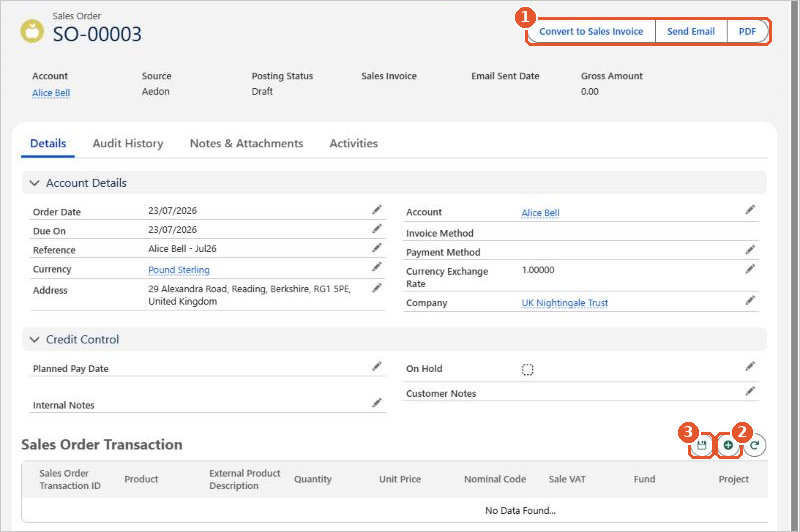
- In Sales Order Transaction, click the add icon(2).
- Choose the product and enter the quantity and unit price. The nominal code and VAT code come from the product.
- Add more lines as needed, then click the save icon(3).
Send it and convert it
Use the buttons at the top(1):
- PDF and Send Email: produce or email the order for your customer.
- Convert to Sales Invoice: creates a sales invoice from the order. The order’s Posting Status changes to Converted to Invoice, and the Sales Invoice field links to the new invoice. See Converting a Sales Order into a Sales Invoice.