Changing a Bank Transfer: Editing & Deleting A Bank Transfer
Updated 31 October 2026
You can change a Bank Transfer after it has been posted by unposting it first. When you unpost, Aedon.Accounting reverses its ledger entries, and the changes are recorded in the transfer’s audit history.
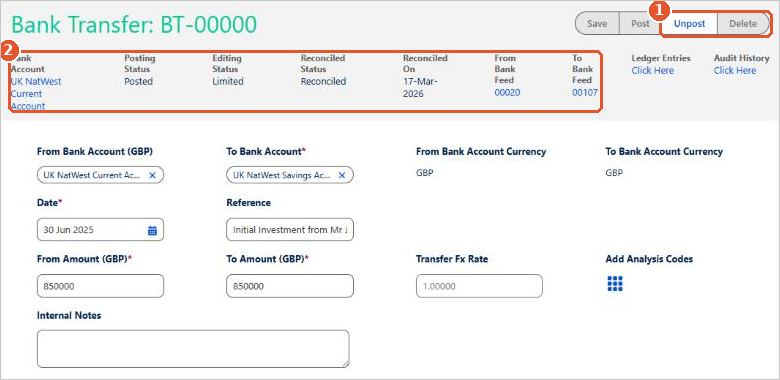
The top of the transfer(2) shows its Posting Status, Editing Status and Reconciled Status, the bank feed lines it is reconciled to, and links to its Ledger Entries and Audit History.
Edit or delete a Bank Transfer
- If the transfer has been reconciled, unreconcile it first in both bank accounts. On each bank account’s Bank Feeds tab, find the statement line, click the arrow at the end of the row and choose Unreconcile.
- Open the transfer from the Bank Transfer tab and click Unpost(1).
- To correct it, change the details, then click Save and Post.
- To remove it, click Delete(1) instead.
Changed in Aedon.Accounting 2.0
Previously, a posted Bank Transfer couldn’t be changed. You had to record a reversing transfer and a new one. You can now unpost, correct and repost the original transfer instead.
If the transfer is included in a submitted VAT return or falls before your lock date, it can’t be unposted or deleted.
Can’t unpost it? Check that both ends have been unreconciled. If it still won’t unpost, please raise a case and our support team will help.