On this page
Correcting Posted Journals, Bank Receipts and Bank Payments
Updated 31 October 2026
Once a manual journal, bank receipt or bank payment has been posted, you correct it by unposting it, changing it and posting it again. Unposting removes its ledger entries, so your reports update straight away.
Bank receipts and bank payments
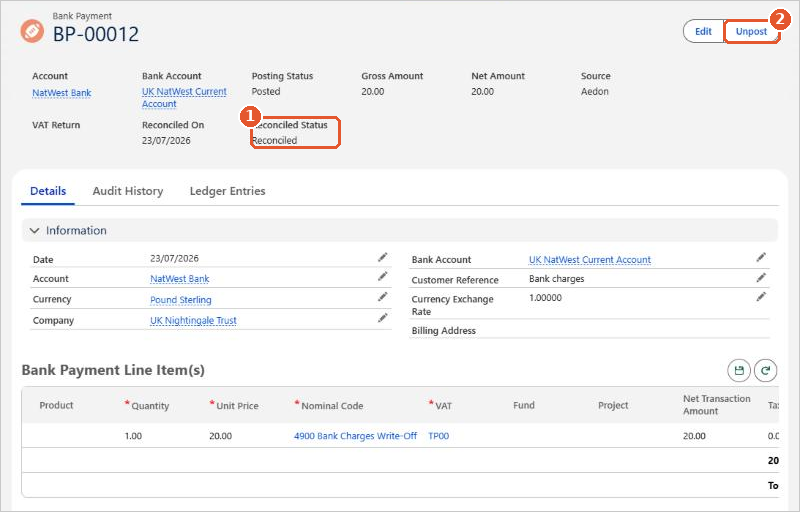
- Open the bank receipt or bank payment from the Bank Receipts or Bank Payments tab in Aedon.Bank.
- Check the Reconciled Status(1). If it is Reconciled, unreconcile it first: open the bank account, click the Bank Feeds tab, find the statement line, click the arrow at the end of the row and choose Unreconcile.
- Click Unpost(2). The transaction goes back to Draft and its ledger entries are removed.
- Make your changes and click Post.
- Reconcile it again on the bank account’s Reconcile tab.
If the transaction shouldn’t exist at all, unpost it and delete the draft.
Manual journals
You can correct a posted manual journal in two ways:
- Unpost it, change it and post it again. Use this when the journal was simply wrong.
- Auto Reverse it on a date you choose. Use this for accruals and prepayments that should reverse in the next period.
Check the period first
Unposting and reposting changes figures in the period of the transaction. If that period has already been reported, or included in a submitted VAT return, think about correcting it in the current period with a new transaction instead.
Sales and purchase transactions have their own articles, for example Making Changes to a Purchase Invoice.