Bank Account
Updated 31 October 2026
A Bank Account in Aedon.Accounting represents one of your real bank accounts, such as a current account, savings account, credit card or PayPal account. Every bank transaction, bank statement line and reconciliation belongs to a bank account, so it’s the place you start for all of your banking work.
- You can have as many bank accounts as you need.
- Each bank account belongs to one Company.
- Each bank account has one Currency, which can’t be changed once transactions have been recorded. Amounts are held in both the bank account’s currency and your company’s base currency.
- Each bank account is linked to its own Nominal Code in your chart of accounts, which is where all of its transactions are posted.
Open a bank account
- Click the App Launcher and open Aedon.Bank.
- Click the Bank Accounts tab and click the bank account’s name.
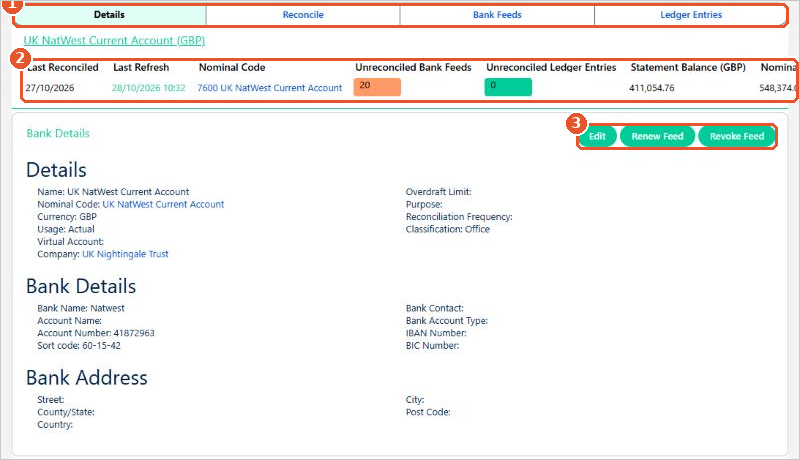
Each bank account has four tabs(1):
- Details: the bank account’s settings and bank details.
- Reconcile: where you reconcile statement lines. See Bank Reconciliation Process.
- Bank Feeds: every line on your bank statement and its reconciliation status. See Bank Statements.
- Ledger Entries: transactions posted to the bank’s nominal code that aren’t yet linked to a statement line.
The summary bar(2) shows when the account was last reconciled and refreshed, how many statement lines and ledger entries are still unreconciled, and the Statement Balance and Nominal Balance. When everything is reconciled, these two balances should agree.
The Edit, Renew Feed and Revoke Feed buttons(3) let you change the bank account’s details and manage its automated bank feed.
When the balances don’t agree
The Statement Balance is the balance on your bank statement lines. The Nominal Balance is the balance of the ledger entries on the bank account’s nominal code. When they differ, the summary bar shows you where to look:
- Unreconciled Bank Feeds: statement lines not yet reconciled to a transaction. The count is highlighted when there are lines to deal with. Reconcile them on the Reconcile tab.
- Unreconciled Ledger Entries: transactions posted to the bank account that aren’t linked to a statement line, such as a payment that hasn’t cleared yet, or one entered twice. Check them on the Ledger Entries tab.
When both counts are zero, the two balances agree. A difference that remains usually means a manual journal has been posted directly to the bank’s nominal code, or the opening balance wasn’t reconciled.
Bank transactions
Bank transactions each have their own tab in the Aedon.Bank app:
- Bank Payments: money paid out that isn’t a supplier invoice payment, such as bank charges or wages. See Creating a Bank Payment.
- Bank Receipts: money received that isn’t a customer invoice payment, such as interest or grants. See Creating a Bank Receipt.
- Bank Transfer: money moved between two of your own bank accounts. See Creating a Bank Transfer.
- Bank Revalue: revaluing a foreign currency bank account. See Revaluing a Bank Account.
- Bank Matching Rules: rules that match and post recurring statement lines automatically. See Bank Matching Rules.
Create a bank account
Before you start, make sure there is a Nominal Code for the bank account in your chart of accounts. Each bank account needs its own nominal code.
- In Aedon.Bank, click the Bank Accounts tab and click New.
- Under Company Information, check the Classification and choose the Company the bank account belongs to.
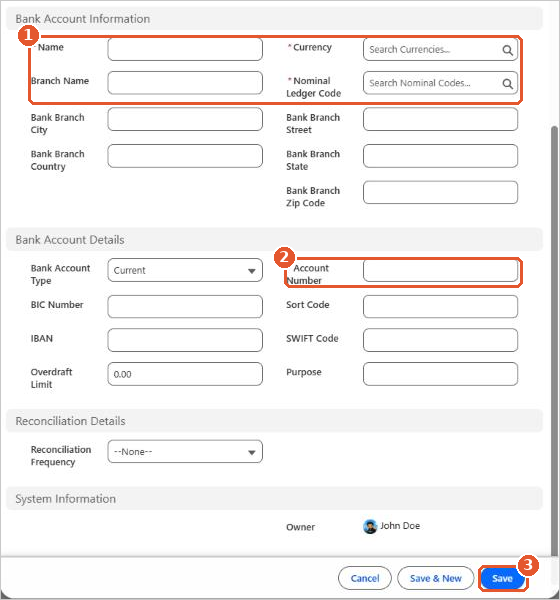
- Under Bank Account Information(1), enter the Name, and choose the Currency and the Nominal Ledger Code.
- Under Bank Account Details, choose the Bank Account Type and enter the Account Number(2), Sort Code and any other details you want to keep, such as the IBAN, BIC or overdraft limit.
- Click Save(3).
Leave the system fields blank
The top of the New Bank Accounts form includes fields that Aedon fills in automatically, such as the statement balance, unreconciled count, bank feed IDs and consent details. Leave these blank. They are updated by the bank feed and the reconciliation.
Naming your bank accounts
Use the same name for the bank account and its nominal code, made up of the bank, its purpose and the last four digits of the account number, for example “NatWest Current 1234”. If you have more than one company, keep the names unique across companies to avoid confusion.
Once the bank account is saved, either connect its automated bank feed or import your first bank statement. See Importing a Bank Statement.
The Ledger Entries tab
The Ledger Entries tab(1) lists transactions posted to this bank’s nominal code that aren’t linked to a bank statement line yet, for example a payment you have recorded that hasn’t left the bank. The count matches Unreconciled Ledger Entries in the summary bar. When everything is reconciled, this list is empty.
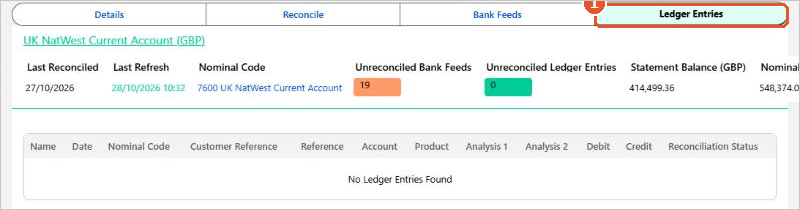
If an entry stays on this list after you have reconciled the bank, check whether it was posted to the bank’s nominal code by mistake, for example in a manual journal.
Still need help? If your balances still don’t agree after checking the Reconcile and Ledger Entries tabs, please raise a case and our support team will help.