Creating a Sales Proforma Invoice
Updated 31 October 2026
Create a Proforma Sales Invoice
- Open Aedon.Sales, click the Proforma Sales Invoices tab and click New.
- Choose the Account (the customer) and the Company, and enter the Proforma Date and Due On date.
- If necessary, change the defaults filled in from the customer, such as the address, currency, exchange rate and payment method, and add a Reference.
- If necessary, add Internal Notes and Customer Notes. Customer notes appear on the PDF.
- Click Save.
- In Proforma Sales Invoice Line(s), click + to add a line. Choose a Product, or enter the Quantity, Unit Price, Nominal Code and Sale VAT, and add any analysis codes.
- Click the save icon above the lines.
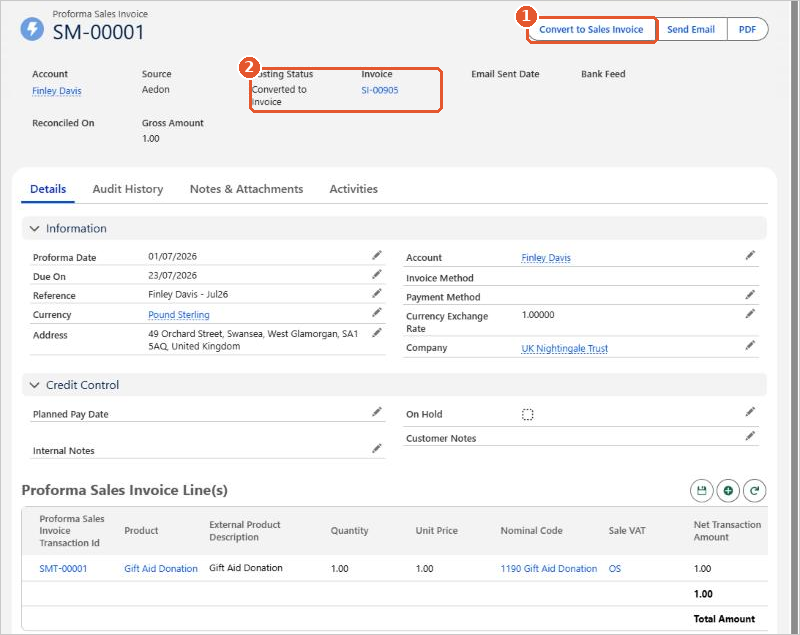
Use the nominal code you want the sale to go to on the Sales Invoice, as it is copied across when you convert.
Send it and convert it
- Click Send Email or PDF to send the proforma to the customer.
- When the sale goes ahead, click Convert to Sales Invoice(1). The Posting Status changes to Converted to Invoice and the Invoice field links to the new invoice(2). The invoice is created as a Draft: open it, check it and click Post.