Sales Invoice
Updated 31 October 2026
The Sales Invoice is the core sales transaction in Aedon.Accounting. It records a sale to a customer and is what you send them to request payment.
You can create a Sales Invoice:
- manually, from the Sales Invoices tab,
- by converting a Sales Order or a Proforma Sales Invoice,
- automatically, from a Recurring Sales Invoice,
- in bulk, using Import Transactions on the Sales Invoices tab.
Create a Sales Invoice
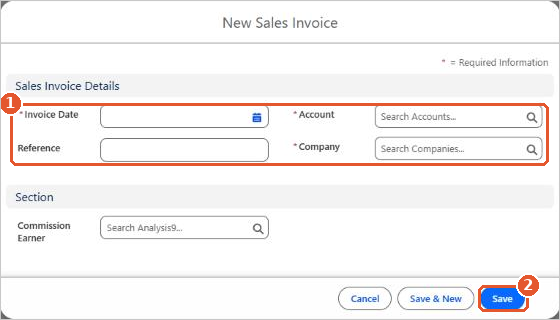
- Open Aedon.Sales, click the Sales Invoices tab and click New.
- Enter the Invoice Date, and choose the Account (the customer) and the Company(1). Add a Reference if you want one.
- Click Save(2).
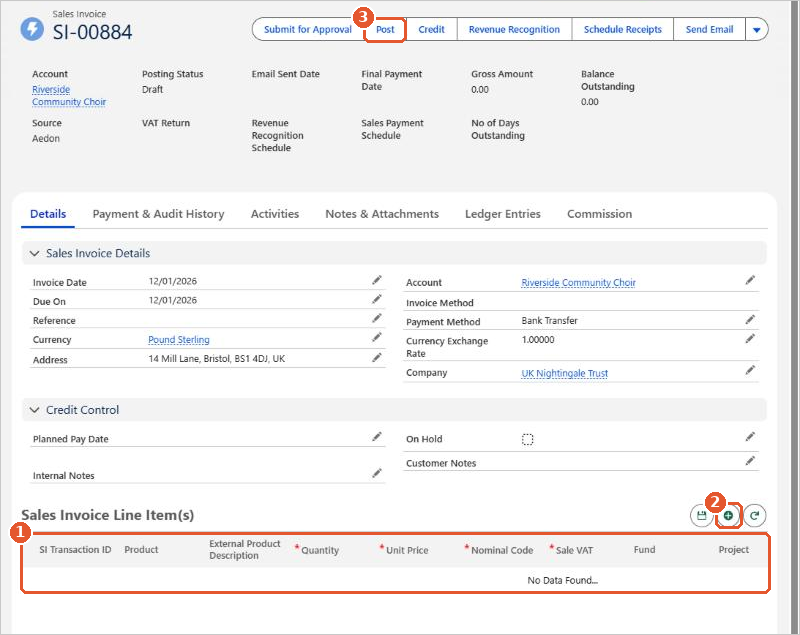
The invoice opens as a Draft. Its due date, address, currency and payment method are filled in from the customer’s account, and you can change them in the Sales Invoice Details section.
- In Sales Invoice Line Item(s)(1), click +(2) to add a line.
- Choose a Product to fill in its description, price, nominal code and VAT, or enter them yourself: Quantity, Unit Price, Nominal Code and Sale VAT. Scroll right to add analysis codes such as Fund or Project.
- Click the save icon above the lines. Repeat for each line.
- Check the Gross Amount, then click Post(3).
Due dates come from the customer
The Due On date is worked out from the Credit Method and Credit Period on the customer’s account. If no credit period is set, the due date is the same as the invoice date. Set these on the account to get the right due dates every time.
After posting
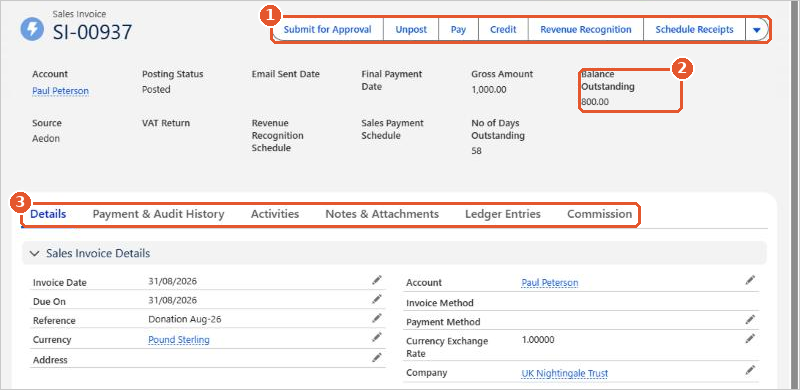
A posted invoice shows the actions(1) you can take next, the Balance Outstanding(2), and tabs(3) for its payments and audit history, activities, notes and attachments, and ledger entries.
- Pay: record a payment. See Paying a Sales Invoice.
- Credit: create a credit note from the invoice. See Crediting a Sales Invoice.
- Unpost: reverse the invoice so you can correct it.
- Submit for Approval, Revenue Recognition and Schedule Receipts are available if your organisation uses them.
Posting rules
| Code | Transaction | Debit | Credit |
|---|---|---|---|
| SI | Sales Invoice | Accounts Receivable | [Nominal Code on each line]Output VAT |
The debit goes to Accounts Receivable. The credit goes to the nominal code on each invoice line and, if VAT applies, to Output VAT.
Can’t post the invoice? Check every line has a Quantity, Unit Price, Nominal Code and Sale VAT, the quantity isn’t negative, and the date is in an open period. If it still won’t post, please raise a case and our support team will help.