Trial Balance
Updated 31 October 2026
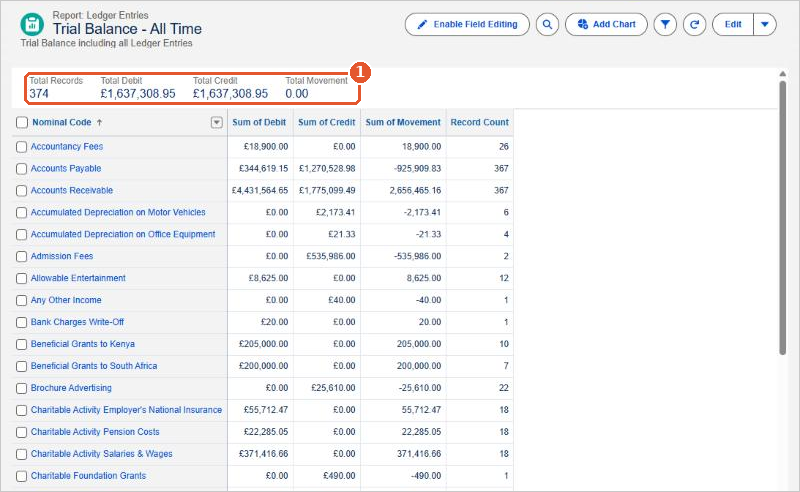
The Trial Balance - All Time report lists every nominal code with its Sum of Debit, Sum of Credit and Sum of Movement (the balance), and the number of ledger entries. At the top(1), Total Debit and Total Credit are always equal and Total Movement is 0.00.
Run the report
Click the Reports tab (or search for Reports in the App Launcher) and click All Folders. Open the AedonPeriodEndReports folder and click the report name.
Click Trial Balance - All Time.
Choose a date
The report opens on All Time. To see the trial balance on a chosen date:
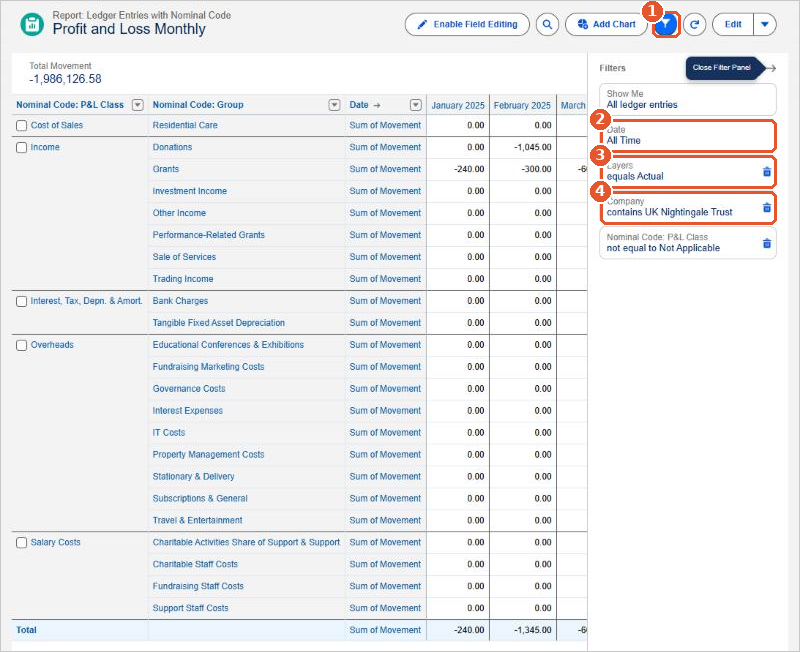
- Click the filter button(1) at the top of the report to open the Filters panel.
- Click the Date filter(2).
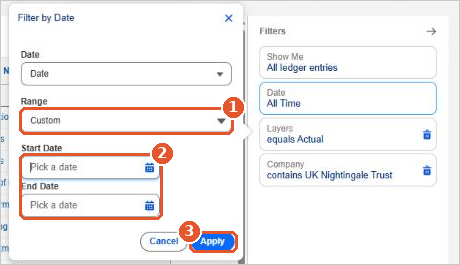
In the Filter by Date window, set Range to Custom(1), leave Start Date empty, and enter the date in End Date(2). Click Apply(3).
Filters are not saved
Changing a filter only changes what you see now. The next time you open the report, it uses its saved filters again.
Turn on Detail Rows at the bottom of the report to see the ledger entries behind each nominal code.
Export the report
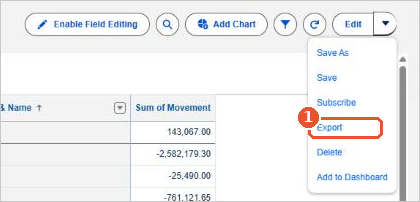
Click the arrow next to Edit and choose Export(1). Choose Formatted Report to keep the layout and totals, or Details Only for the rows of data, then click Export.
Salesforce help
These are standard Salesforce reports. For more about using them, see Salesforce’s own help:
Related articles
Accounts Payable
Accounts Receivable
Balance Sheet
Correcting Posted Journals, Bank Receipts and Bank Payments
Creating a Budget Journal
Creating a Manual Journal