Sales Credit
Updated 31 October 2026
A Sales Credit (credit note) reduces the amount a customer owes you, for example after a short delivery, a quality problem, a goodwill gesture or a discount.
Once a Sales Credit is posted, you can either allocate it against one of the customer’s invoices, which settles that amount of the invoice, or refund it, paying the money back to the customer. It’s good practice to allocate or refund credits promptly so the sales ledger stays tidy.
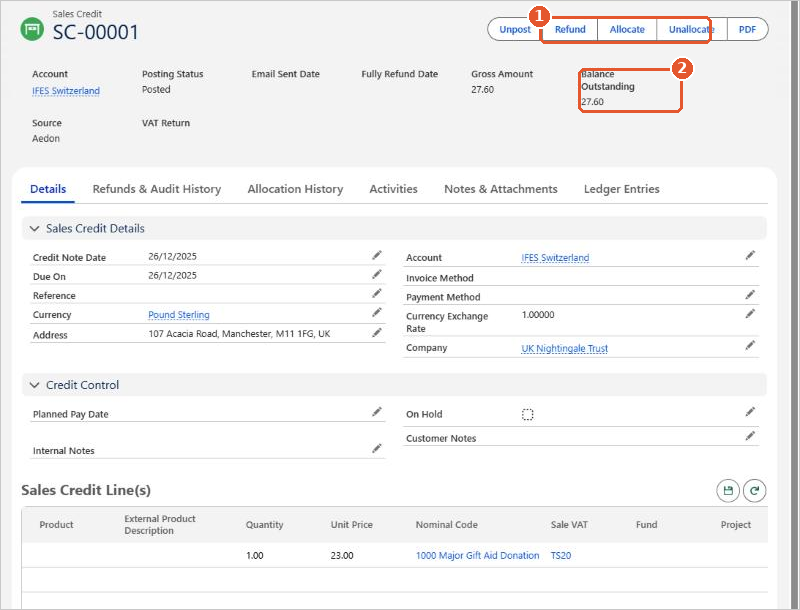
A posted Sales Credit shows Refund, Allocate and Unallocate(1), and how much of it is still to use in Balance Outstanding(2).
Allocate it to an invoice
- Open the posted Sales Credit and click Allocate.
- The Allocate Outstanding Credit to Invoices window lists the customer’s unpaid invoices. Enter the amount to use against each invoice in Amount to Credit(1), and change the Allocation Date if needed.
- Click Allocate(2).
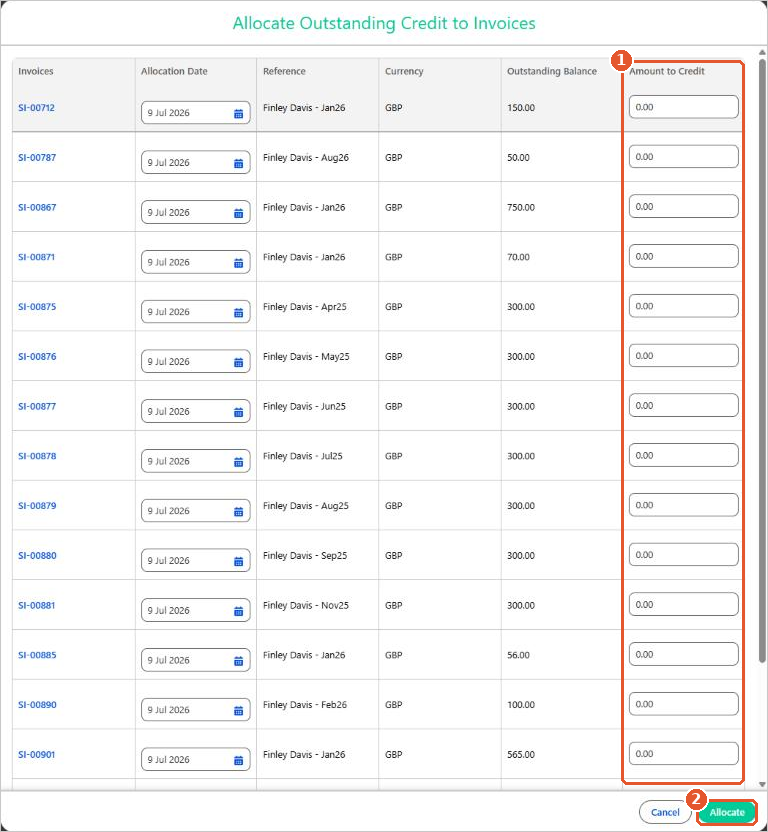
Allocating doesn’t create any new ledger entries. It reduces the balance outstanding on both the Sales Credit and the invoice. To reverse an allocation, click Unallocate.
Refund it
This process has it’s own article please see Refunding a Sales Credit for more information.
Posting rules
| Code | Transaction | Debit | Credit |
|---|---|---|---|
| SC | Sales Credit | [Nominal Code on each line]Output VAT | Accounts Receivable |
A Sales Credit is the reverse of a Sales Invoice. The debit goes to the nominal code on each line and, if VAT applies, to Output VAT. The credit goes to Accounts Receivable.