On this page
Converting a Sales Order into a Sales Invoice
Updated 31 October 2026
A Sales Order records what a customer has agreed to buy before you bill them. When the order is ready to be invoiced, you convert it into a Sales Invoice, which copies the customer, dates and lines across.
Convert a Sales Order
- Open Aedon.Sales, click the Sales Orders tab and open the order.
- Check the order lines are complete and correct. Anything you change after converting must be changed on the invoice.
- Click Convert to Sales Invoice(1).
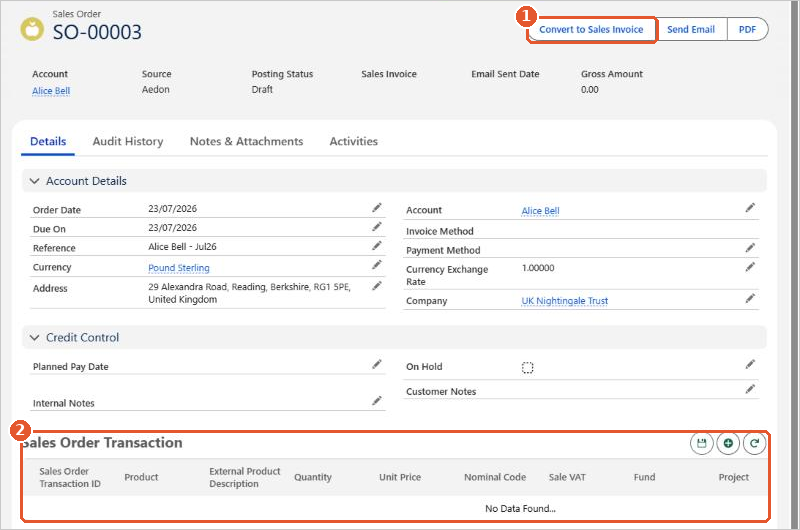
Once converted, the order’s Posting Status shows Converted to Invoice and the Sales Invoice field links to the new invoice(1).
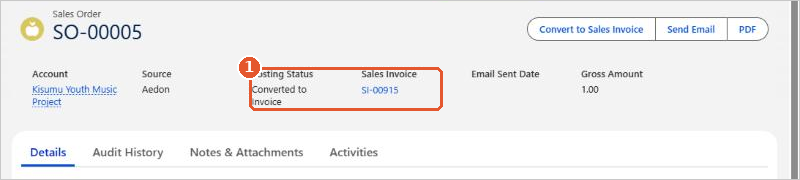
- Click the Sales Invoice link to open the invoice. It is created as a Draft, so you can still change it.
- Check the invoice, then click Post.