Getting Started: Navigating the Aedon Apps
Updated 31 October 2026
Aedon.Accounting is organised into separate apps, one for each area of your accounts. Each app has its own tabs and its own home page.
Open an app
Click the App Launcher(1), the grid of dots at the top left, and choose the app(2). To find a page that isn’t on the app’s tabs, such as the aged balances or tax pages, type its name in Search apps and items.
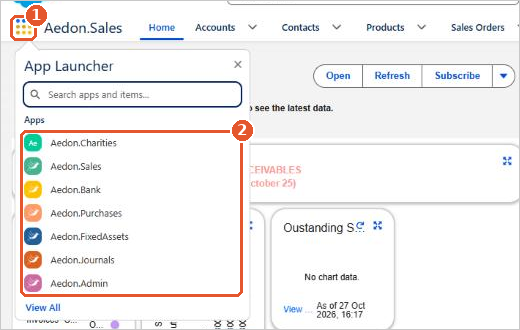
The Aedon apps
| App | What it’s for |
|---|---|
| Aedon.Sales | Customers, products, sales orders, proforma invoices, sales invoices and credits, payments, refunds, recurring invoices and revenue recognition |
| Aedon.Purchases | Suppliers, products, purchase orders, purchase invoices and credits, payments, refunds and recurring invoices |
| Aedon.Bank | Bank accounts, bank payments, receipts and transfers, revaluations, bank matching rules and reconciliation |
| Aedon.Journals | Manual, budget and recurring journals |
| Aedon.Admin | Companies, tax, currencies, exchange rates, analysis codes, nominal codes and accounts |
| Aedon.Setup | Tax legislations and treatments, user company access, financial years, periods and analysis code configs |
| Aedon.Charities | Funds, SORP reporting and Gift Aid, for charities |
Which apps you see depends on your permissions.
Find your way around an app
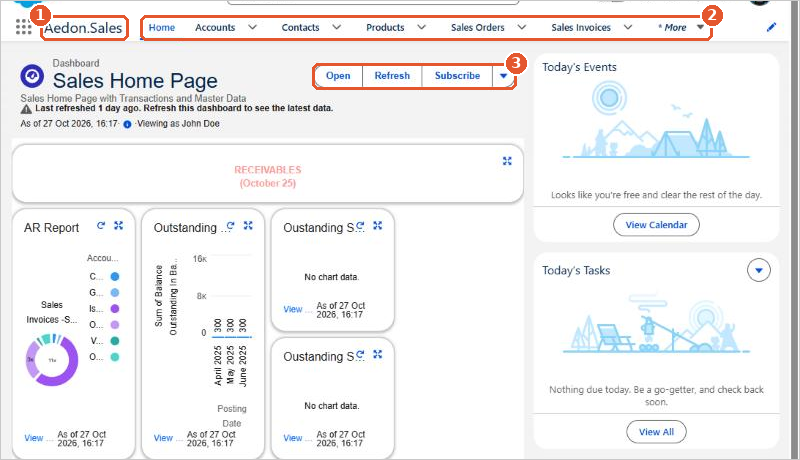
- The app name(1) shows which app you’re in.
- The tabs(2) open each type of record. Click More to see the rest. Every app also has Reports and Dashboards tabs.
- The Home tab shows the app’s dashboard. Click Refresh(3) to update it. See Aedon Home Page.
- The company you’re working in is shown at the bottom left. See Switching Company.
Personalise your tabs
Click the pencil at the right of the tab bar to add, remove or reorder the tabs you see in an app. This only changes your own view.
Salesforce help
For more about finding your way around Salesforce, see Salesforce’s own help:
Related articles
Adding a Company Logo to Aedon
Adding New Users to Salesforce
Aedon Home Page
Assigning Role Based User Security
Budget Layers
Companies