Switching Company and Shared Master Data
Updated 31 October 2026
If you keep accounts for more than one company in Aedon.Accounting, you always work in one company at a time. The transactions you create, and the records you see, belong to the company you’re logged in to.
Switch company
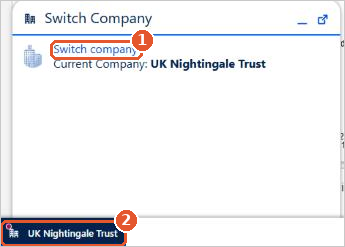
- Click the company name at the bottom left of the screen(2). The Switch Company panel opens, showing your current company.
- Click Switch company(1).
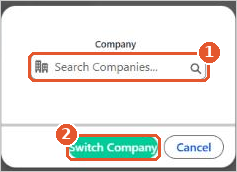
- Search for and choose the company(1).
- Click Switch Company(2).
You can only choose companies you’ve been given access to. Your administrator gives access on the User Company Access tab in the Aedon.Setup app. See Adding New Users to Salesforce.
Check the company first
Before you create or post a transaction, check the company name at the bottom left. A transaction is created in the company you’re logged in to.
Shared master data
Some master data can be shared by all your companies by leaving its Company field blank:
- Nominal codes: a nominal code with no company, such as Accounts Receivable or Accounts Payable, is available in every company. Codes used by one company only have that company filled in. See Managing the Chart of Accounts.
- Analysis 5 to Analysis 10: values with no company can be used by every company.
Each company has its own financial years, periods, exchange rates, bank accounts and transactions. Each customer or supplier account belongs to one company. See Customers & Suppliers.
Related articles
Adding a Company Logo to Aedon
Adding New Users to Salesforce
Aedon Home Page
Assigning Role Based User Security
Budget Layers
Companies