Managing the Chart of Accounts
Updated 31 October 2026
Your chart of accounts is the list of nominal codes that every transaction is posted to. Aedon.Accounting comes with a standard chart of accounts, which you can extend with your own codes.
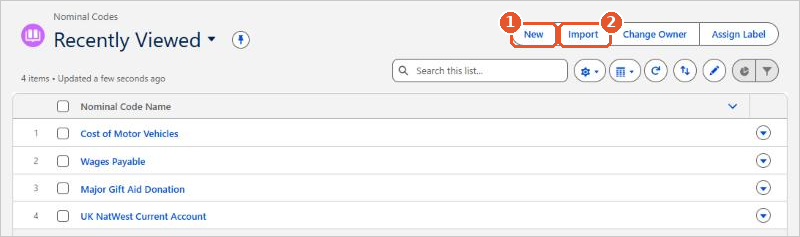
Open the Nominal Codes tab in the Aedon.Admin app, or search for Nominal Codes in the App Launcher.
Create a nominal code
- Click New(1). To add several codes from a spreadsheet, click Import(2) instead.
- Fill in the fields below and click Save.
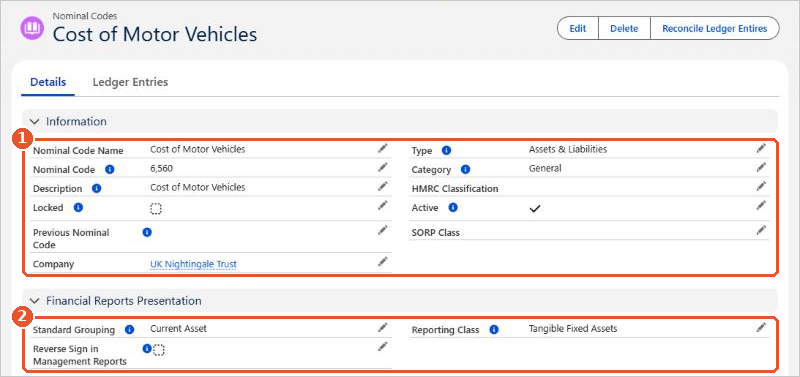
Nominal code fields
Information(1)
| Field | What it does |
|---|---|
| Nominal Code Name | The name users see on transactions and reports. |
| Nominal Code | The number. Fit it into the existing ranges, leaving gaps for future codes. |
| Description | How the nominal code should be used. |
| Type | Whether the code belongs in the balance sheet or the profit and loss. It can’t be changed later. |
| Category | Where the code can be used: Sales for sales transactions and bank receipts, Purchases for purchase transactions and bank payments, Bank for bank accounts, General anywhere. VAT is reserved for Input and Output VAT. |
| Locked | Stops manual journals posting directly to the code. Used for control accounts such as Accounts Receivable, Accounts Payable, VAT and exchange gains and losses. |
| Active | Only active codes can be posted to. Untick it for codes you no longer use. |
| Previous Nominal Code | The code in your previous accounts system, for reference. |
| Company | The company the code belongs to. Leave it blank to share the code with all your companies. |
Financial Reports Presentation(2)
| Field | What it does |
|---|---|
| Standard Grouping | Where the code is grouped in the financial reports, such as Sales, Overheads or Current Asset. |
| Reporting Class | The more detailed group the code is reported in. |
| Reverse Sign in Management Reports | Shows debit balances as negative and credit balances as positive in the reports. |
Rename or renumber a nominal code
Click Edit on the nominal code, change the Nominal Code Name or Nominal Code, and click Save. If the code has already been posted to, its ledger entries are updated to the new name and number.
Stop using a nominal code
Untick Active rather than deleting the code. Its history stays in your reports, and you can reactivate it later.
Related articles
Adding a Company Logo to Aedon
Adding New Users to Salesforce
Aedon Home Page
Assigning Role Based User Security
Budget Layers
Companies