Creating New Analysis Codes
Updated 31 October 2026
Aedon.Accounting has 10 analysis codes, Analysis 1 to Analysis 10, for analysing your transactions in your own way, for example by fund, project or department. Every transaction line can carry one value for each analysis code, and the values are recorded on the ledger entries.
Setting up analysis codes has two parts: naming each analysis code, then adding the values your users choose from.
Name an analysis code
Each analysis code’s name is set by an Analysis Code Config record. Open the Aedon.Setup app and click the Analysis Code Configs tab, then click New, or open an existing config to change it.
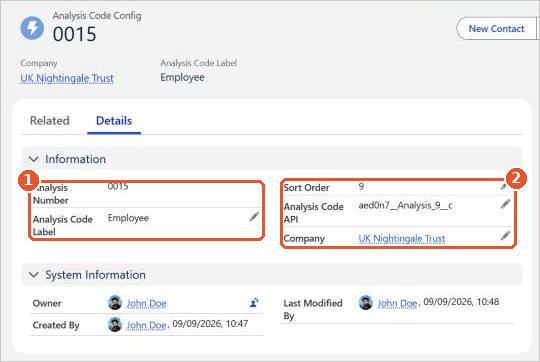
- Analysis Code Label(1): the name users see, such as Project.
- Analysis Code API(2): which analysis code this label is for. Enter it exactly as shown in the table below.
- Sort Order: the order the analysis codes appear in. Enter 1 to show it first.
- Company: the company the label applies to.
| Analysis code | Analysis Code API |
|---|---|
| Analysis 1 | aed0n7__Analysis_1__c |
| Analysis 2 | aed0n7__Analysis_2__c |
| Analysis 3 | aed0n7__Analysis_3__c |
| Analysis 4 | aed0n7__Analysis_4__c |
| Analysis 5 | aed0n7__Analysis_5__c |
| Analysis 6 | aed0n7__Analysis_6__c |
| Analysis 7 | aed0n7__Analysis_7__c |
| Analysis 8 | aed0n7__Analysis_8__c |
| Analysis 9 | aed0n7__Analysis_9__c |
| Analysis 10 | aed0n7__Analysis_10__c |
Make Analysis 1 your most-used code
Analysis 1 appears on the face of every transaction, while the others are a click away. Give Analysis 1 to the code your users fill in most often.
Add analysis code values
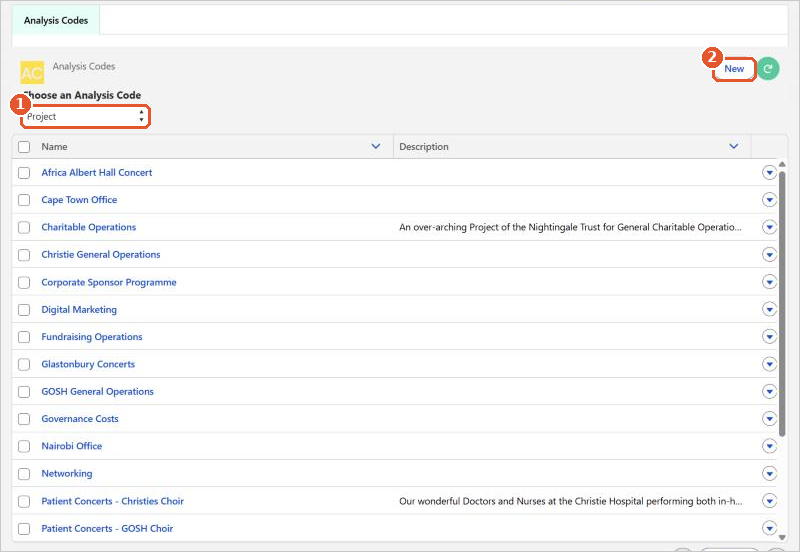
- Open the Aedon.Admin app and click the Analysis Codes tab.
- In Choose an Analysis Code(1), choose the analysis code. Its existing values are listed.
- Click New(2).
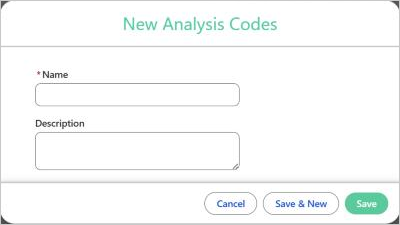
- Enter the Name and, if necessary, a Description.
- Click Save, or Save & New to add another value.
Watch it step by step: click through the interactive walkthrough below.
Out of date? Let us know and we’ll update the walkthrough.