Revaluing a Bank Account
Updated 31 October 2026
A bank account in a foreign currency holds two balances: its balance in the account’s own currency (the source currency), and its value in your base currency in the nominal ledger. As exchange rates move, the base currency value goes out of date. Revaluing the bank account brings it back in line with the current rate.
A revaluation changes only the base currency value in the nominal ledger. The balance in the source currency doesn’t change. The difference is posted as a Bank Gain or a Bank Loss on the revaluation date.
Before you start
The amount revalued is the account’s Source Nominal Balance, not the bank statement balance. Reconcile the bank account first, so the statement and the nominal ledger agree. See Bank Reconciliation Process.
You’ll also need the exchange rate for the revaluation date. Use a reputable source, such as xe.com, and use the same source each time.
Revalue a bank account
- In Aedon.Bank, click the Bank Accounts tab and open the foreign currency bank account.
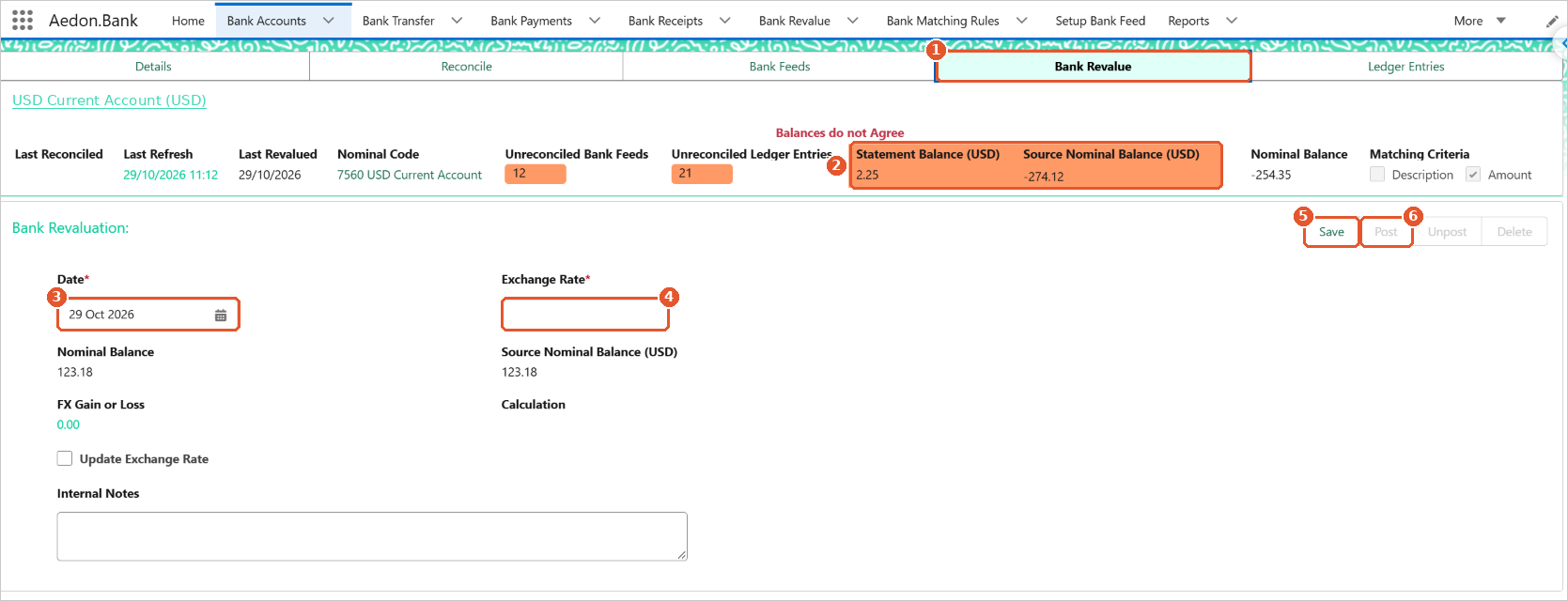
- Click the Bank Revalue tab(1). This tab is only shown on bank accounts that aren’t in your base currency.
- Check the balances at the top of the page(2). If they show Balances do not Agree, the statement and the nominal ledger don’t match yet. Finish reconciling before you revalue.
- Check the Date(3). It defaults to today. Change it if you’re revaluing as at another date, for example the last day of the month.
- Enter the Exchange Rate(4): how much of the account’s currency one unit of your base currency buys on that date (for a US Dollar account in a Pound Sterling company, the number of dollars to the pound).
As soon as you enter the rate, Aedon works out the revaluation:
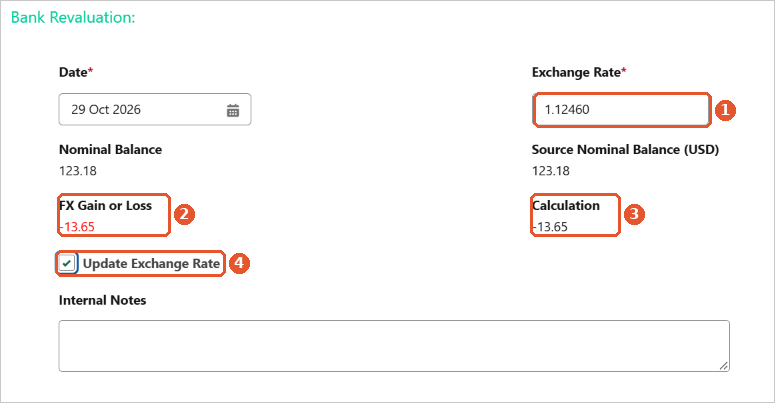
- Exchange Rate(1): the rate you entered.
- FX Gain or Loss(2): the amount that will be posted. A negative figure, shown in red, is a loss.
- Calculation(3): how the amount was worked out: the Source Nominal Balance converted at the new rate, less the current Nominal Balance. In this example, 123.18 US Dollars at 1.12460 is worth £109.53, which is £13.65 less than the £123.18 in the ledger, so there’s a loss of £13.65.
- Update Exchange Rate(4): tick this to also save the rate as the currency’s exchange rate, so it’s used for other transactions. See Creating New Currency Exchange Rates.
- If you want, add Internal Notes, for example where the rate came from.
- Click Save(5).
- Check the FX Gain or Loss again. When you’re happy it’s correct, click Post(6).
The bank account’s Nominal Balance now matches its source currency balance at the new rate, and Last Revalued shows the date. Every revaluation is also listed on the Bank Revalue tab in the Aedon.Bank menu.
Posting rules
| Code | Name | Debit | Credit |
|---|---|---|---|
| BG | Bank Gain | Bank account nominal code | FX Gains & Losses |
| BL | Bank Loss | FX Gains & Losses | Bank account nominal code |
A revaluation posts a single entry, dated on the revaluation date. For the posting rules of every transaction, see Transaction Posting Rules.