Why Won’t My Transaction Post?
Updated 31 October 2026
When a transaction won’t save or post, Aedon.Accounting shows a message explaining what needs to change. Most problems come down to three things:
- Fill in every required field. Required fields are marked with a red asterisk.
- Double-check your work before you save or post: dates, amounts, accounts and codes.
- Check the set-up behind the task. If something isn’t working, the cause is often in the configuration the task depends on rather than in the task itself. For example, if a bank matching rule isn’t matching when you reconcile, the fix is in Bank Matching Rules, not on the bank account.
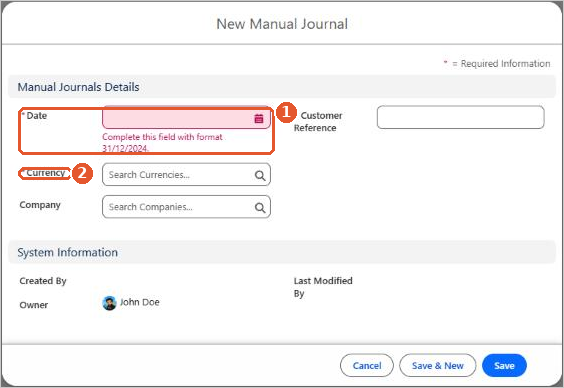
Required fields are marked with a red asterisk(2). If one is missing, the message appears under the field(1).
Header and lines
Every Aedon transaction has two parts: the header, with details such as the account, date, currency and company, and the lines, with the products, amounts, nominal codes and tax codes. If a required detail isn’t in one, it will be in the other, so check both.
We’ll keep adding to this article as we learn about more common posting problems.
Common messages
| Message | What to do |
|---|---|
| … cannot be less than zero | Amounts, quantities, prices, discounts and exchange rates must be zero or more. To reverse a sale or purchase, raise a credit instead of entering a negative quantity. |
| Due Date should not be less than Invoice date | Set the due date on or after the invoice date. |
| Planned pay date should not be less than Invoice date | Set the planned payment date on or after the invoice date. |
| Payment Date cannot be prior to Invoice Date | A sales payment can’t be dated before the invoice it pays. |
| Description should not exceed 255 characters | Shorten the line description to 255 characters or fewer. |
| Quantity / Net amount / Tax amount should not exceed 16 characters | The figure is too long. Check for a typing error. |
| Please enter a valid Discount Percentage | Enter a discount between 0 and 100. |
| Currency Exchange Rate cannot be less than zero and have no more than 5 decimal places | Enter a positive exchange rate with up to five decimal places. |
| Exchange Rate cannot be Zero/Negative | Exchange rates must be greater than zero. |
Checks before you post
- The right company. Check the company at the bottom left of the screen. See Switching Company and Shared Master Data.
- A financial year and period. The transaction date must fall in a financial year and period set up for the company. See Creating New Financial Years.
- An exchange rate. For a foreign currency transaction, the company needs an exchange rate for that currency from on or before the transaction date. See Creating New Currency Exchange Rates.
- Nominal and tax codes on every line. If a product doesn’t fill them in, check its default nominal codes and tax codes. See Default Product Tax Codes.
- Active nominal codes in the right category. Inactive codes can’t be posted to, and each code’s Category limits where it can be used. Locked codes, such as Accounts Receivable and VAT, can’t be used in manual journals. See Managing the Chart of Accounts.
- A balanced journal. The debits on a manual journal must equal the credits. See Creating a Manual Journal.
Still stuck?
If all else fails, contact Aedon support. Include the transaction number, such as SI-00123, and the exact wording of the message, or a screenshot of it.
Related articles
Adding a Company Logo to Aedon
Adding New Users to Salesforce
Aedon Home Page
Assigning Role Based User Security
Budget Layers
Companies