On this page
Sales Invoice PDF and Payment Message
Updated 31 October 2026
Every sales invoice can be produced as a PDF to send to your customer.
Open the PDF
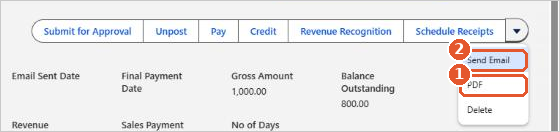
On the sales invoice, click the arrow at the end of the buttons and choose PDF(1). The PDF opens, ready to download or print. Send Email(2) emails the invoice.
Where the details come from
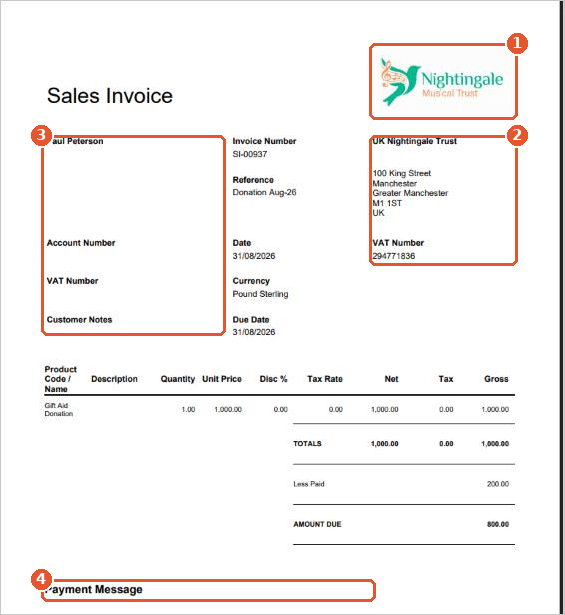
| On the PDF | Where it comes from |
|---|---|
| Logo(1) | The companylogo file attached to your company. See Adding a Company Logo to Aedon. |
| Your name, address and VAT number(2) | Your company record. See Companies. |
| Customer name, account number and VAT number(3) | The customer’s account. |
| Invoice number, reference, dates and currency | The sales invoice. |
| Customer Notes | The Customer Notes on the sales invoice. |
| Lines and totals | The invoice lines, using each product’s External Product Description. Less Paid and Amount Due show any payments already received. |
| Payment Message(4) | The Payment Message on the customer’s account. |
Add a payment message
Use the payment message for information such as your bank details or payment terms.
- Open the customer’s account from the Accounts tab.
- In Financial Information, click the pencil next to Payment Message.
- Enter the message and click Save.
The message appears on every invoice and credit note PDF for that customer.