Claiming Gift Aid from HMRC
Updated 31 October 2026
Aedon.Charities builds your Gift Aid claim from the paid donation lines on your sales invoices and submits it to HMRC for you. This article covers the one-off set-up, checking which donations are ready to claim, and sending the claim.
Before you start
- Each donor has a Gift Aid declaration recorded on their contact, and each donation used a product marked as eligible for Gift Aid. See Gift Aid Declarations and Eligible Products.
- The donations are posted and paid.
- Your organisation is connected to HMRC for Gift Aid claims.
- Your charity’s Gift Aid details are on the company (below).
Add your charity’s Gift Aid details
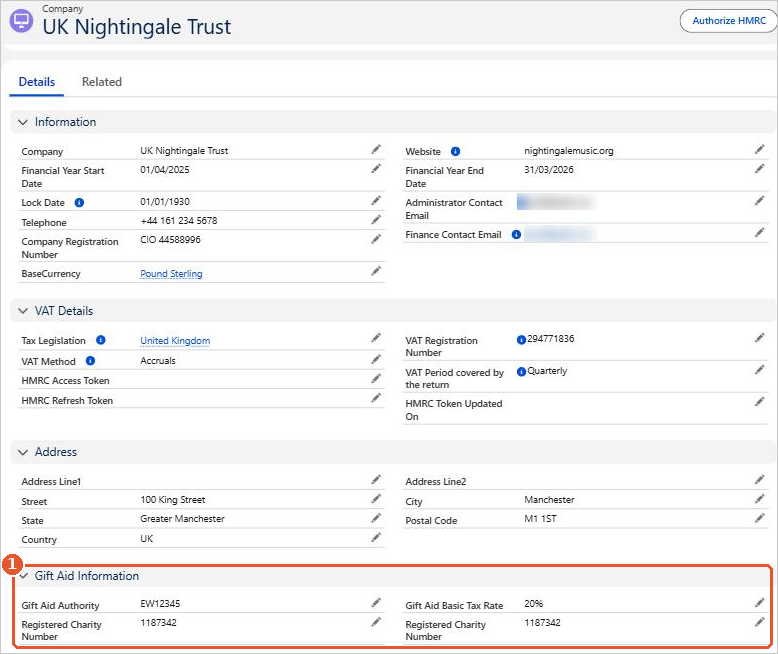
- In Aedon.Admin, click the Companies tab and open your company.
- Scroll to the Gift Aid Information section(1) and fill in Gift Aid Authority, Registered Charity Number and Gift Aid Basic Tax Rate (the basic rate of income tax, used to work out the tax your charity can claim back).
- Click Save.
For the company’s other settings, see Companies.
See your donations
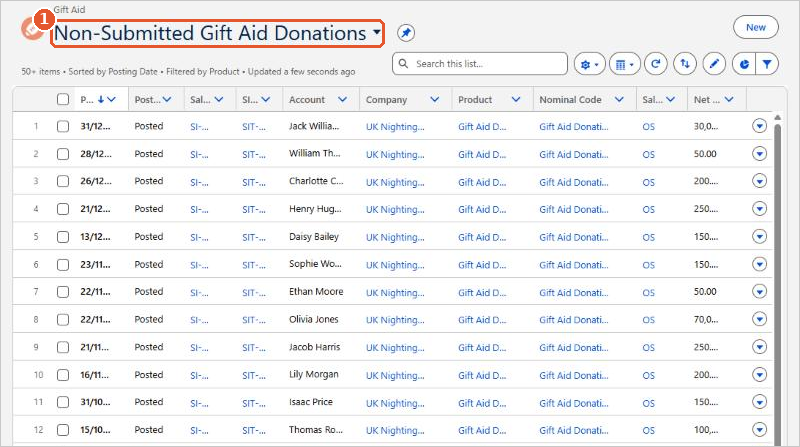
In Aedon.Charities, click the Gift Aid tab. Each row is one donation line from a sales invoice. Use the list view menu(1) to choose a view, for example Non-Submitted Gift Aid Donations, All Donations or Non-Submitted GASDS for Gift Aid Small Donations Scheme donations.
Submit a Gift Aid claim
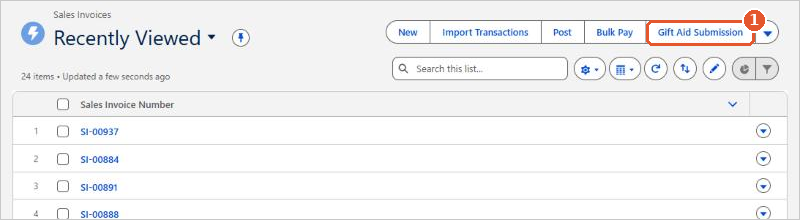
- In Aedon.Sales, click the Sales Invoices tab, then click Gift Aid Submission(1). If you can’t see it, click the arrow at the end of the buttons.
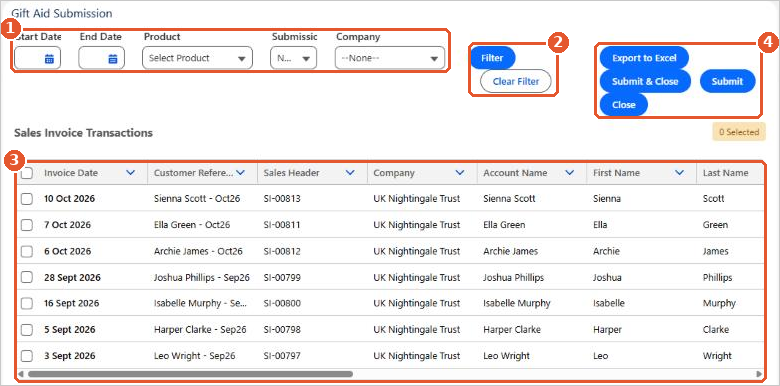
- The Gift Aid Submission page opens, listing the donation lines that haven’t been submitted yet. If necessary, narrow the list with the filters(1): Start Date, End Date, Product, Submission Status and Company. Click Filter(2) to apply them, or Clear Filter to start again.
- Check the donations in the list(3). Scroll right to see the donor’s name and postcode, the product, the Paid Amount and the fund. Tick each donation to include in the claim. The count of selected lines shows above the list.
- To keep a copy of the claim before you send it, click Export to Excel(4).
- Click Submit to send the selected donations to HMRC, or Submit & Close to send them and close the page. Close leaves without submitting.
Check each donor before you submit
Only include donations from donors who have a Gift Aid declaration in force on the date of the donation. Check the donor’s contact if you’re not sure.
Follow the claim’s progress
Each claim is saved on the Gift Aid Submissions tab in Aedon.Charities, with its Submission Date, Submission Number and who submitted it. Aedon.Accounting checks HMRC for a response and updates the claim’s Gift Aid Polling Status. Each donation line in the claim shows a matching Gift Aid Submission Status, with a link to the claim:
| Claim (Gift Aid Polling Status) | Donation lines (Gift Aid Submission Status) | What it means |
|---|---|---|
| In Progress | Submitted | The claim has been sent and HMRC hasn’t responded yet. |
| Success | Accepted | HMRC has accepted the claim. |
| Error | Rejected | HMRC has rejected the claim. The reason is in the claim’s Polling Error Description. |
Donations that haven’t been claimed yet show Non-Submitted.
Still not working? If a claim is rejected and you can’t see why, please raise a case and our support team will help.
Related articles
Apportionment and Recovery Percentages: Irish Charities
Choosing the Right VAT Code: UK Charities
Donor Gift Aid Statements
Getting Started with Aedon.Charities
Gift Aid Declarations and Eligible Products
Partial Exemption and Recovery Percentages: UK Charities