Getting Started with Aedon.Charities
Updated 31 October 2026
Aedon.Charities adds the charity features of Aedon.Accounting: tracking income and spending by fund, recording Gift Aid declarations against your donors, and claiming Gift Aid from HMRC. It works with the same companies, nominal codes, customers and sales invoices you use in the rest of Aedon.Accounting, so donations are recorded and posted in the usual way.
Open Aedon.Charities
Click the App Launcher (the nine dots, top left) and choose Aedon.Charities. For a tour of the App Launcher and the other Aedon apps, see Getting Started: Navigating the Aedon Apps.
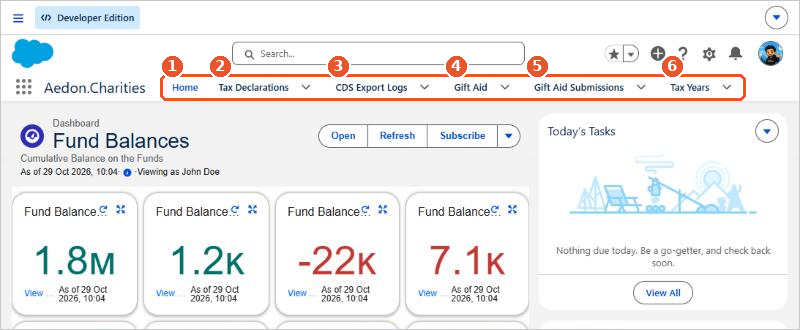
The app has these tabs:
- Home(1): your charity’s dashboards and your tasks and events for the day.
- Tax Declarations(2): donor tax declarations for the Irish Charitable Donation Scheme.
- CDS Export Logs(3): a record of each claim file exported for the Irish Charitable Donation Scheme.
- Gift Aid(4): your sales invoice lines, with list views for all donations, Gift Aid donations and Gift Aid Small Donations Scheme (GASDS) donations.
- Gift Aid Submissions(5): each Gift Aid claim sent to HMRC, with its submission number and HMRC’s response.
- Tax Years(6): the UK tax years (6 April to 5 April) used to group donations for Gift Aid.
Tax Declarations and CDS Export Logs are for Irish Gift Aid, which is being worked on. We’ll add guidance for them here when it’s ready.
Watch it step by step: click through the interactive walkthrough below.
Out of date? Let us know and we’ll update the walkthrough.
Funds
Funds are an analysis code. Each fund (for example General Fund, or a restricted fund for a project) is a value of your Fund analysis code, and you choose the fund on each transaction line in the same way as any other analysis code. This keeps one chart of accounts for every fund, and lets you report income, spending and balances by fund. To set up or change your funds, see Creating New Analysis Codes. To move money from one fund to another, see Transferring between Funds.
SORP reports
Each nominal code has a SoFA Class and a SORP Group, which place it in the right line of your Statement of Financial Activities and balance sheet. Fill these in when you create a nominal code. See Managing the Chart of Accounts.
The SoFA and balance sheet by fund are standard Salesforce reports in the SORP report folder. See SORP Reports: SoFA and Balance Sheet by Fund.
Donors and Gift Aid
Donors are customers in Aedon.Accounting, and each donation is a sales invoice line. To claim Gift Aid you need:
- a Gift Aid declaration recorded on the donor’s contact,
- donation products marked as eligible for Gift Aid, and
- your charity’s Gift Aid details on the company.
See Gift Aid Declarations and Eligible Products and Claiming Gift Aid from HMRC. To give a donor a summary of their gifts for a tax year, see Donor Gift Aid Statements.
Related articles
Apportionment and Recovery Percentages: Irish Charities
Choosing the Right VAT Code: UK Charities
Claiming Gift Aid from HMRC
Donor Gift Aid Statements
Gift Aid Declarations and Eligible Products
Partial Exemption and Recovery Percentages: UK Charities