Transferring between Funds
Updated 31 October 2026
When your charity moves money from one fund to another, for example releasing General Fund money to a restricted project fund, you record it as two bank transactions in Aedon.Bank: a Bank Payment out of the fund giving the money, and a Bank Receipt into the fund receiving it. Both use the same bank account, amount and transfers between funds nominal code, so they cancel out overall and only the fund balances change.
Before you start
- Both funds must be set up as values of your Fund analysis code. See Creating New Analysis Codes.
- You need a nominal code for transfers between funds. In our example it’s 5200 Transfers Between Funds; yours may have a different number. See Managing the Chart of Accounts.
Step 1: Record the payment from the giving fund
- Open the App Launcher (the nine dots, top left), choose Aedon.Bank, click the Bank Payments tab and click New.
- Fill in the Date, Bank Account, Account and Company. Give it a Customer Reference that describes the transfer, for example March Fund Transfer. Click Save.
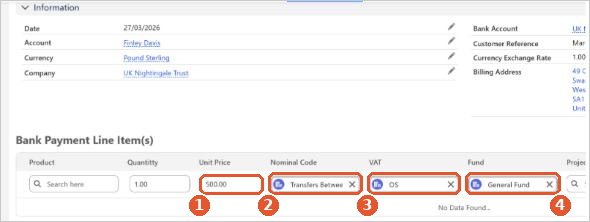
- Add a line with a Quantity of 1 and:
- Unit Price(1): the amount you’re transferring.
- Nominal Code(2): your transfers between funds code.
- VAT(3): OS (outside the scope of VAT).
- Fund(4): the fund the money is leaving, for example General Fund.
- Save the line, then click Post.
For more on Bank Payments, see Creating a Bank Payment.
Step 2: Record the receipt into the receiving fund
- In Aedon.Bank, click the Bank Receipts tab and click New.
- Fill in the header with the same Date, Bank Account, Account, Customer Reference and Company as the payment. Click Save.
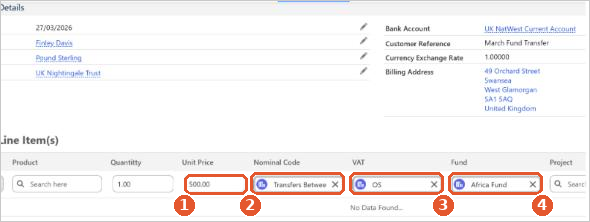
- Add a line with a Quantity of 1, the same Unit Price(1), the same Nominal Code(2) and VAT code OS(3). Set the Fund(4) to the fund the money is going to, for example Africa Fund.
- Save the line, then click Post.
For more on Bank Receipts, see Creating a Bank Receipt.
Keep the pair together
Use the same date, amount and Customer Reference on the payment and the receipt, so the two halves of the transfer are easy to find together later.
Check the result
Run the SoFA by fund report. The giving fund goes down and the receiving fund goes up by the amount transferred, and the total across all funds doesn’t change. See SORP Reports: SoFA and Balance Sheet by Fund.
Watch it step by step: click through the interactive walkthrough below.
Out of date? Let us know and we’ll update the walkthrough.
Related articles
Apportionment and Recovery Percentages: Irish Charities
Choosing the Right VAT Code: UK Charities
Claiming Gift Aid from HMRC
Donor Gift Aid Statements
Getting Started with Aedon.Charities
Gift Aid Declarations and Eligible Products