SORP Reports: SoFA and Balance Sheet by Fund
Updated 31 October 2026
Your charity’s SORP statements, the Statement of Financial Activities (SoFA) and the balance sheet, are standard Salesforce reports. Each one shows a column for every fund, so you can see restricted and unrestricted funds side by side.
Open the SORP reports
Click the Reports tab (or search for Reports in the App Launcher), click All Folders and open the SORP folder(1). Click a report name(2) to run it.
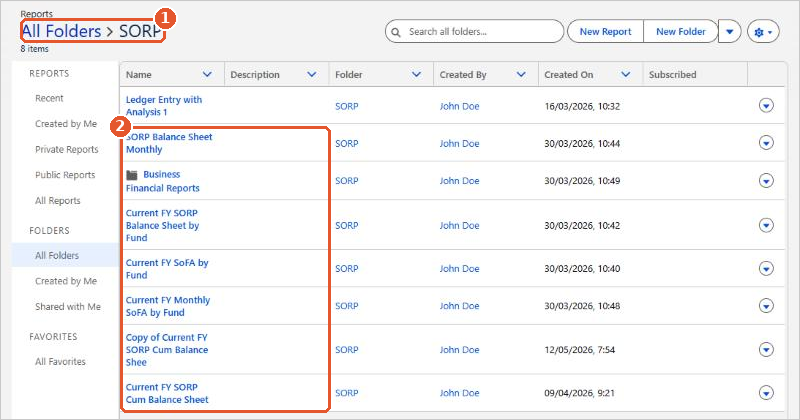
- Current FY SoFA by Fund: income and expenditure for the current financial year, grouped by SoFA class and SORP group, with a column for each fund.
- Current FY Monthly SoFA by Fund: the same, split by month.
- Current FY SORP Balance Sheet by Fund: the movement on each balance sheet line for the current financial year, with a column for each fund.
- Current FY SORP Cum Balance Sheet: the balance sheet by reporting category and SORP group, with a column for each fund.
- SORP Balance Sheet Monthly: the balance sheet split by month and fund.
The Business Financial Reports folder inside the SORP folder has the Profit and Loss and Balance Sheet reports. See Financial Reports.
Read the report
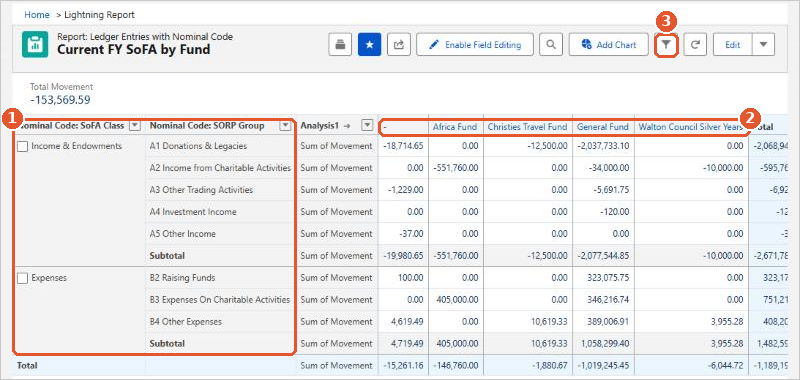
- Each row(1) is a SoFA class (for example Income & Endowments or Expenses) and the SORP groups within it. These come from the SoFA Class and SORP Group on each nominal code. See Managing the Chart of Accounts.
- Each column(2) is a fund, from the Fund analysis code on each transaction line. The column headed
-is transactions with no fund. - Income shows as a negative (credit) figure and expenditure as a positive (debit) figure.
Change the filters
Click the filter button(3) to change the dates, the company or the layer (Actual, or a budget layer). The reports open on the current financial year. The company filter is set to your company name when Aedon.Accounting is set up for you. For more on report filters, see Financial Reports.
Watch it step by step: click through the interactive walkthrough below.
Apportionment and Recovery Percentages: Irish Charities
Choosing the Right VAT Code: UK Charities
Claiming Gift Aid from HMRC
Donor Gift Aid Statements
Getting Started with Aedon.Charities
Gift Aid Declarations and Eligible Products