Translating Aedon.Accounting
Updated 31 October 2026
Users can work in Aedon.Accounting in their own language. Salesforce’s own screens are already translated into many languages; the Aedon labels, such as tab, field and button names, can be translated with Salesforce’s Translation Workbench.
Set a user’s language
Each user chooses their language in their personal settings: click their profile picture, then Settings, then Language & Time Zone, and choose the Language. An administrator can also set it on the user’s record in Setup.
Translate the Aedon labels
A Salesforce administrator manages translations in Setup:
In Setup, enter Translate in the Quick Find box and click Translate. If the Translation Workbench isn’t turned on yet, click Enable(1).
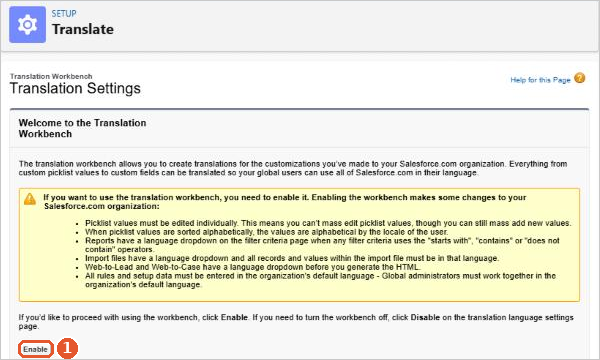
- Turn on the Translation Workbench and add the languages you need, with a translator for each.
- Translate the Aedon labels, including the field labels, picklist values and custom labels in the Aedon package.
- Users who have chosen that language then see the translated labels.
Your own data, such as product descriptions and account names, isn’t translated.
Watch it step by step: click through the interactive walkthrough below.
Out of date? Let us know and we’ll update the walkthrough.
Salesforce help
For the details, see Salesforce’s own help: