Gift Aid Declarations and Eligible Products
Updated 31 October 2026
Before you can claim Gift Aid on a donation, two things must be in place: the donor has given you a Gift Aid declaration, and the donation was recorded with a product that is eligible for Gift Aid. This article shows where each is recorded.
Record a donor’s Gift Aid declaration
Each donor is a customer account with a contact for the person who gave the declaration. The declaration is recorded on the contact.
- Open the donor’s contact. Search for the donor’s name in the search bar at the top of the page.
- Check the summary at the top of the page(1). It shows the declaration date, whether the donor is eligible for Gift Aid, their donor role and how they declared.
- To add or change the declaration, scroll to the Gift Aid Information section(2) and click the pencil icon next to the field you want to change.
- Click Save.
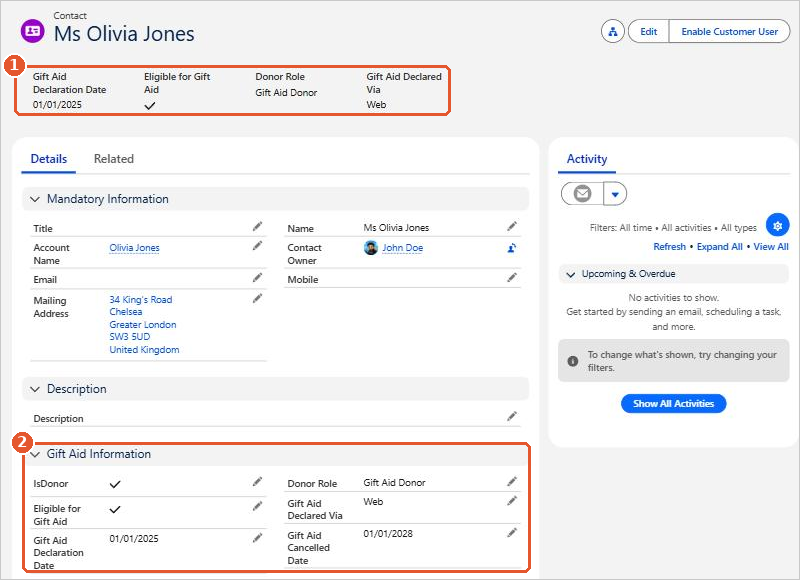
The Gift Aid Information fields are:
| Field | What to enter |
|---|---|
| IsDonor | Tick if this contact gives to your charity. |
| Eligible for Gift Aid | Tick when you hold a valid Gift Aid declaration for this donor. |
| Gift Aid Declaration Date | The date the donor made the declaration. |
| Donor Role | Donor, Gift Aid Giver or Gift Aid Donor. |
| Gift Aid Declared Via | How the declaration was made: Telephone, Email, Verbal or Web. |
| Gift Aid Cancelled Date | If the donor cancels their declaration, the date it was cancelled. Leave blank while the declaration is in force. |
Keep the declaration itself
HMRC can ask to see a donor’s declaration. Keep the original (the web form, email, or your note of a telephone or verbal declaration) for as long as HMRC requires.
Mark donation products as eligible for Gift Aid
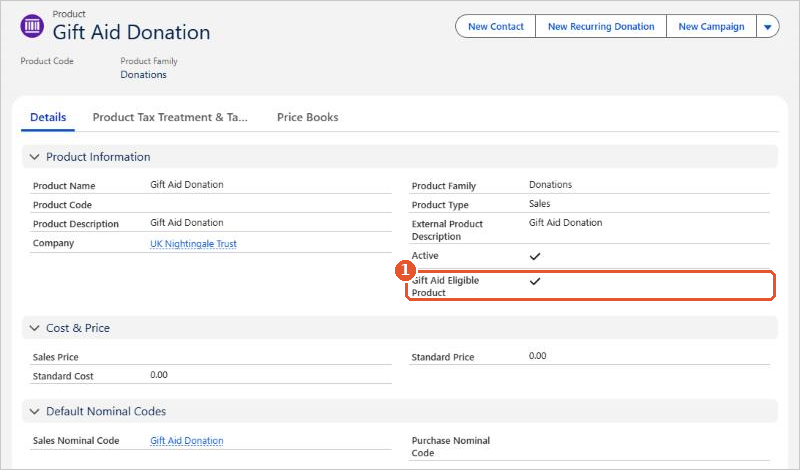
Each donation is a line on a sales invoice, and the product on the line says whether the donation qualifies. For example, a Gift Aid Donation product would be eligible and a Non-Gift Aid Donation product wouldn’t. Every donation product must be set up as one or the other.
- Open the product from the Products tab in Aedon.Sales.
- Check the Gift Aid Eligible Product tick box(1). To change it, click the pencil icon, tick or untick the box and click Save.
For the rest of the product’s settings, see Products.
Record a donation
Create a sales invoice to the donor’s account using the eligible donation product, post it and record the payment, as you would for any other sales invoice. See Sales Invoice and Paying a Sales Invoice. Choose the fund the donation belongs to in the line’s Fund analysis code.
Once the donation has been paid, it’s ready to include in a Gift Aid claim. See Claiming Gift Aid from HMRC.
Related articles
Apportionment and Recovery Percentages: Irish Charities
Choosing the Right VAT Code: UK Charities
Claiming Gift Aid from HMRC
Donor Gift Aid Statements
Getting Started with Aedon.Charities
Partial Exemption and Recovery Percentages: UK Charities