On this page
Making Changes to a Purchase Refund: Editing, Unposting & Deleting a Purchase Refund
Updated 31 October 2026
A Purchase Refund can’t be edited. If it’s wrong, unpost it and delete it, then record it again if you need to.
Remove a Purchase Refund
- If the refund has been reconciled, unreconcile it first from the bank account’s Bank Feeds tab. See Unreconcile Matched to Payment.
- Open the refund from the Purchase Refunds tab, or from the Refunds & Audit History tab of the credit or payment on account it came from.
- Click Unpost(1). The status changes to Draft.
- Click Delete and confirm.
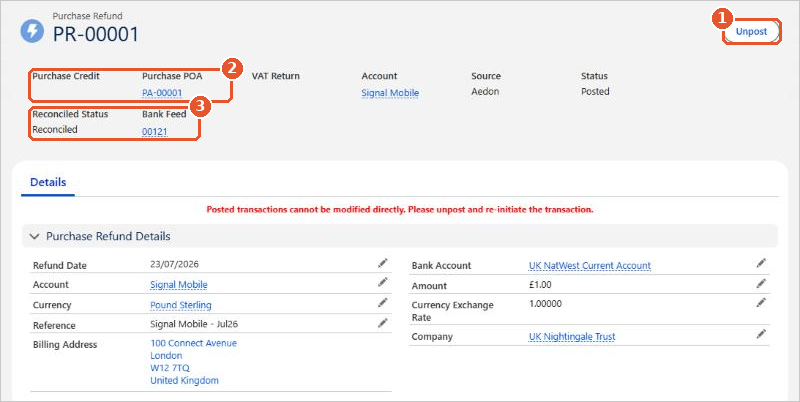
- Unpost(1) reverses the refund. See Making Changes to a Purchase Refund.
- Purchase Credit or Purchase POA(2) links to the transaction the refund came from.
- Reconciled Status and Bank Feed(3) show whether it has been reconciled to your bank statement.
Once the refund is deleted, the Balance Outstanding on the credit or payment on account goes back up by the amount of the refund.
When it can’t be changed
- Included in a submitted VAT return: it can’t be unposted or deleted. Correct it with a new transaction in a later VAT period.
- Dated before the lock date: it can’t be unposted until your finance controller moves the lock date back.
If you still can’t make the change you need, please raise a case and we’ll help.