On this page
Recurring Journals
Updated 31 October 2026
A recurring journal posts the same journal on a regular schedule, for example a monthly depreciation charge, a prepayment release or a regular accrual. You set it up once and Aedon.Accounting creates each journal on its date.
Open the Recurring Journals tab in Aedon.Journals and click New.
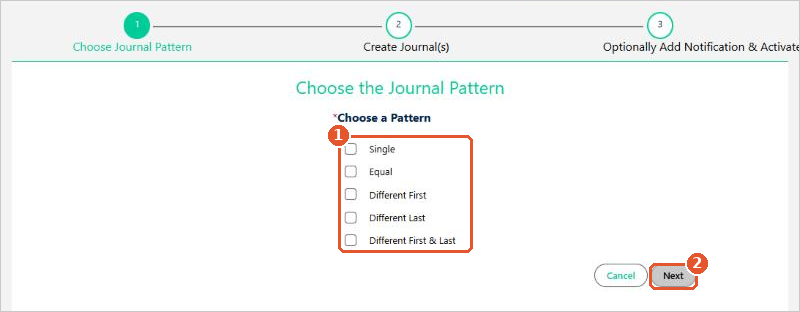
Step 1: Choose the journal pattern
Choose the pattern(1) and click Next(2):
- Single: one scheduled journal.
- Equal: every journal is for the same amount.
- Different First, Different Last or Different First & Last: the first or last journal is for a different amount.
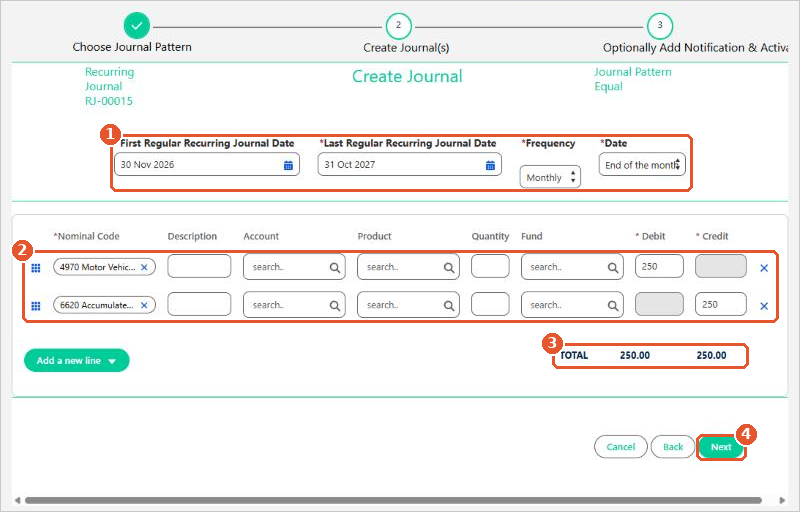
Step 2: Create the journal
- Enter the First Regular Recurring Journal Date and Last Regular Recurring Journal Date, and choose the Frequency and the Date in the month(1).
- Enter the journal lines(2): the Nominal Code, a Description, and a Debit or Credit on each line. Add an account, product, quantity or analysis codes if you need them. Use Add a new line for more lines.
- Check that the debit and credit totals(3) agree, then click Next(4).
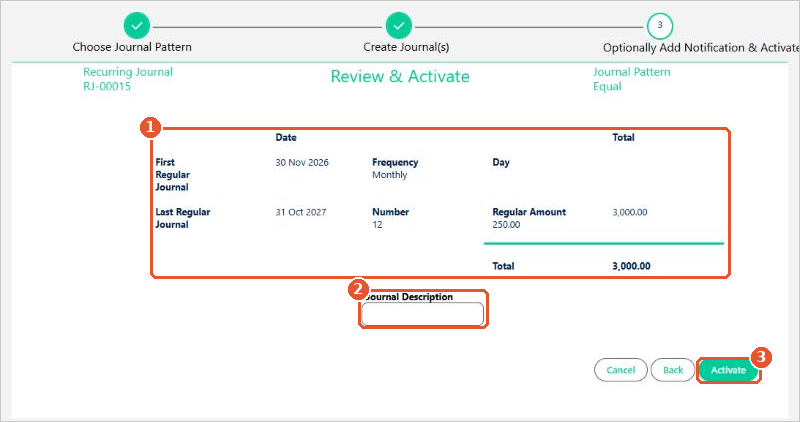
Step 3: Review and activate
- Check the summary(1): the first and last journal dates, the frequency, the number of journals, the regular amount and the total.
- Enter the Journal Description(2).
- Click Activate(3).
The recurring journal is saved as you go
The recurring journal is saved as a Draft as soon as you leave step 1. If you cancel, delete the draft from the Recurring Journals tab.
Each journal is created on its date by a scheduled job. The recurring journal’s Status shows whether it is Activated, On Hold, Deactivated or Completed. See Scheduling Jobs for Recurring Transactions.