Bank Matching Rules
Updated 31 October 2026
Bank matching rules save you time on the bank transactions that come round again and again but never have an invoice, such as bank charges, wages, pension contributions, HMRC payments and bank interest.
A rule tells Aedon.Accounting how to recognise one of these lines on your bank statement, and what to record when it does. When a statement line meets a rule’s conditions, the Reconcile tab shows a green Rule button against it. When you reconcile the line, Aedon creates the Bank Payment (money out) or Bank Receipt (money in) for you, using the account, nominal code, tax rate and analysis codes saved on the rule.
How a rule recognises a statement line
Each rule can check up to three things on a statement line:
- Code: the transaction code from the bank, for example CHG, BACS or DD.
- Description: the text the bank shows for the transaction.
- Amount: the value of the line.
For each one you choose whether it is Active, an Operator (Contains, Equal, Greater than or Less than) and a Value. A statement line only matches when it meets every active condition. Matching is not case-sensitive, so a value of “Bank charges” matches “BANK CHARGES”.
Keep conditions simple
Use Contains with the part of the description that is the same every time, and leave out dates and references that change. Only make Amount active if the amount never changes, or use Less than to catch small items such as bank charges.
Create a rule
The quickest way to create a rule is straight from a statement line, because Aedon fills in the details from that line for you.
- Open Aedon.Bank, click Bank Accounts, open the bank account and click the Reconcile tab.
- Find a statement line for the kind of transaction you want the rule to handle, click the arrow in the Actions column and choose Create a Rule.
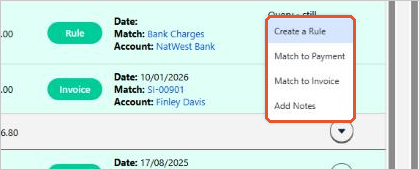
The Create Bank Payment Rule window opens for money going out. For money coming in, the window creates a Bank Receipt rule instead and works in the same way.
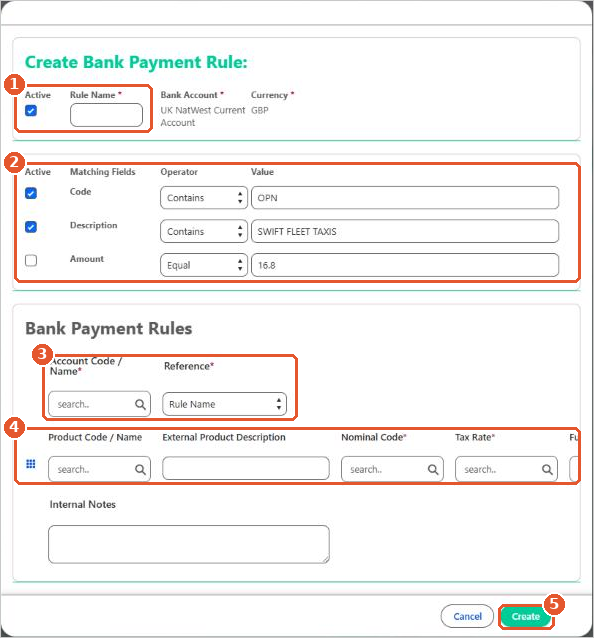
- Enter a Rule Name(1) that describes the transaction, for example “Bank Charges” or “Net Wages”. Leave Active ticked. The Bank Account and Currency are filled in for you.
- Check the Matching Fields(2). The Code, Description and Amount are copied from the statement line. Edit the values so they will match future lines too, choose the Operator for each, and untick Active against any field the rule should ignore.
- Choose the Account Code / Name(3) that the bank transaction should be recorded against, such as your bank, HMRC or pension provider, and choose the Reference to use on the transactions the rule creates:
- Rule Name: the rule’s name.
- Bank Code: the code from the statement line.
- Bank Description: the description from the statement line.
- Complete the transaction line(4). Choosing a Product is optional and fills in its defaults. The Nominal Code and Tax Rate are required. Scroll the line to the right to add any analysis codes, such as Fund or Project.
- Add any Internal Notes and click Create(5).
- Back on the Reconcile tab, click Refresh Match. The new rule is applied to all unreconciled lines, and any that match show a green Rule button ready to reconcile.
View your rules
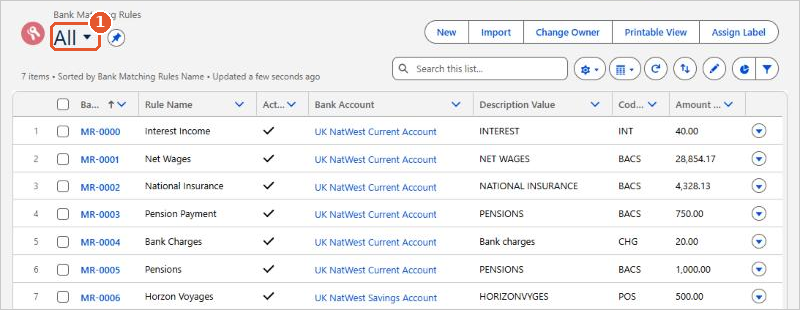
- In Aedon.Bank, click the Bank Matching Rules tab.
- Choose the All list view(1) to see every rule, with its bank account, description value, code and amount.
Edit or switch off a rule
Open a rule from the list. The Details tab shows whether the rule is Active(1) and its matching conditions in the Rules section(2). Click the pencil next to a field to change it, then click Save.
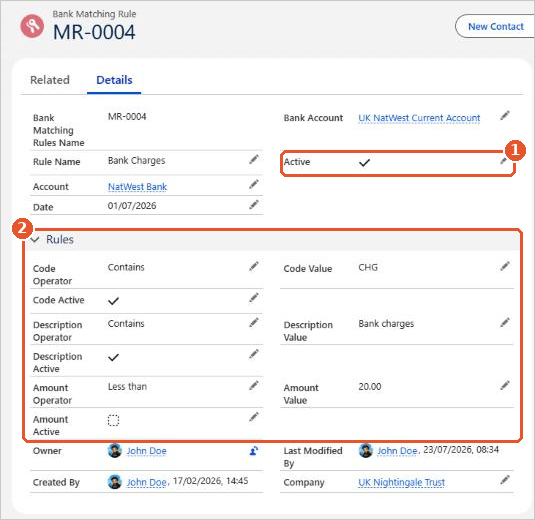
- To stop a rule matching, untick Active. The rule is kept, so you can switch it back on later.
- You can change the rule name and any of the matching conditions here.
Changing what a rule posts
If you need to change the account, product, nominal code, tax rate or analysis codes a rule uses, switch the old rule off and create a new one. This keeps a clear record of what each rule posted and when.
If a rule isn’t matching
- Check the rule is Active and is for the right Bank Account.
- Check the statement line meets every active condition. An Amount condition or a description containing a date or reference is the most common reason a rule stops matching.
- Click Refresh Match on the Reconcile tab after creating or changing a rule.
Still not matching? If you have worked through these checks and the rule still isn’t being applied, please raise a case and our support team will help.