Matched to Invoice
Updated 31 October 2026
Match to Invoice reconciles a bank statement line against an unpaid sales or purchase invoice and records the payment for you in one step:
- Money in: Aedon creates a Sales Payment against the sales invoice and reconciles it to the statement line.
- Money out: Aedon creates a Purchase Payment against the purchase invoice and reconciles it to the statement line.
When Refresh Match finds an unpaid invoice for the same amount, the line shows a green Invoice button on the Reconcile tab, and you can reconcile it with one click. Use Match to Invoice from the Actions menu when the match wasn’t found automatically.
Match a statement line to an invoice
- Open Aedon.Bank, click Bank Accounts, open the bank account and click the Reconcile tab.
- Click the arrow in the Actions column for the statement line and choose Match to Invoice.
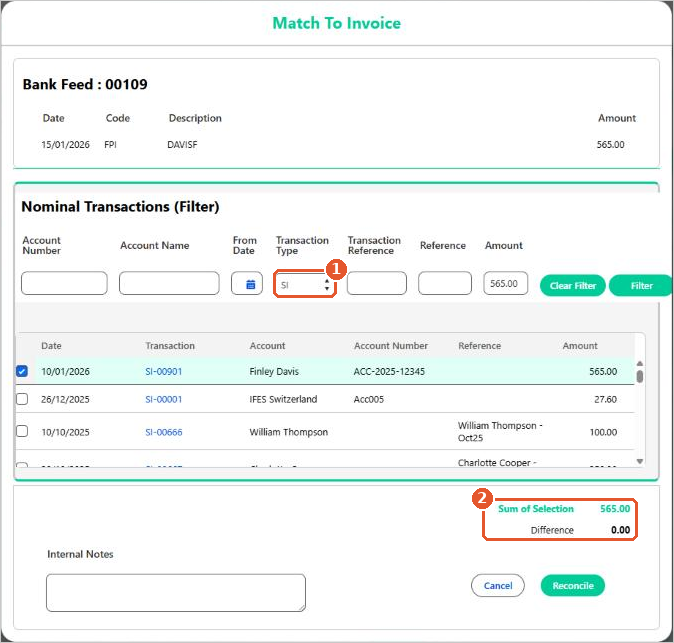
- The Transaction Type(1) is set for you: SI (Sales Invoice) for money in, or PI (Purchase Invoice) for money out. If necessary, use the other filters to find the invoice and click Filter.
- Tick the invoice. Invoices for exactly the same amount as the statement line are highlighted in green.
- Check that Sum of Selection has turned green and the Difference is 0.00(2).
- Add any Internal Notes, then click Reconcile.
One invoice per statement line
Match to Invoice pays one invoice at a time. If you tick a second invoice, Aedon shows the message “You can select a maximum of 1 records only”. To pay several invoices with one bank line, record the payments first with a Bulk Payment and then reconcile them together using Match to Payment.
Paying several invoices from one bank line
- Record the payments with a Bulk Payment. See Creating a Bulk Sales Payment or Creating a Bulk Purchase Payment.
- On the Reconcile tab, use Match to Payment and tick all of the payments that make up the statement line.
When the amount doesn’t match the invoice
Match to Invoice needs the statement line and the invoice to agree exactly. If they don’t, record what actually happened first, then reconcile the transactions with Match to Payment. How you treat a difference depends on your organisation’s own policies. These are the usual options.
The customer paid less than the invoice (underpayment)
- Part payment: record a Sales Payment for the amount received, leaving the balance outstanding on the invoice.
- Deduction you accept, such as a bank charge or a small error: raise a Sales Credit for the difference and allocate it to the invoice, then record a Sales Payment for the amount received.
The customer paid more than the invoice (overpayment)
- Record a Sales Payment against the invoice for the invoice amount.
- Record a Sales Payment on Account for the extra amount.
- Use Match to Payment and tick both. Together they will equal the statement line.
You paid a supplier a different amount
- Paid less: record a Purchase Payment for the amount actually paid. The remainder stays outstanding until you pay it.
- Paid more: record a Purchase Payment for the invoice amount and a Purchase Payment on Account for the extra, then match both with Match to Payment.
For invoices in a foreign currency, differences can also come from the exchange rate. See Foreign Exchanges Features.
Still not sure how to record it? If you have worked through these options and aren’t sure of the right treatment, please raise a case and our support team will help.