Year-End Journal
Updated 31 October 2026
At the end of each financial year, the balances on your income and expenditure nominal codes are cleared so the new year starts from zero. For a charity, this also clears the balances in each fund. The Year-End Journal does this for you. It reads the balance of every income and expenditure nominal code for the year and creates a draft manual journal that reverses each one, with the surplus or deficit for the year going to your retained earnings or reserves code.
The journal has many lines on each side, but its debits and credits are equal, so its overall effect is zero. You run it once for each financial year.
Before you start
- Post every transaction for the year, including accruals, prepayments and any adjustments from your accountant.
- Check the year’s figures in the Trial Balance.
The journal is created for the company you’re logged in to. To close another company’s year, switch company first. See Switching Company and Shared Master Data.
Create the year-end journal
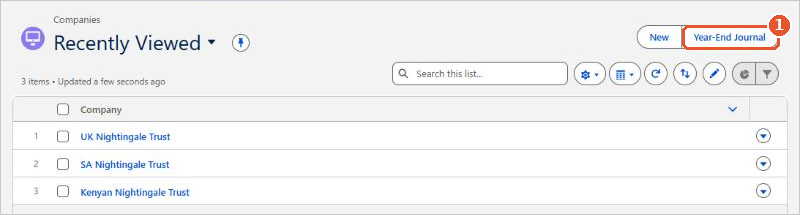
- In Aedon.Admin, click the Companies tab, then click Year-End Journal(1).
- In Choose the Financial Year(1), choose the year you’re closing, then click Next(2).

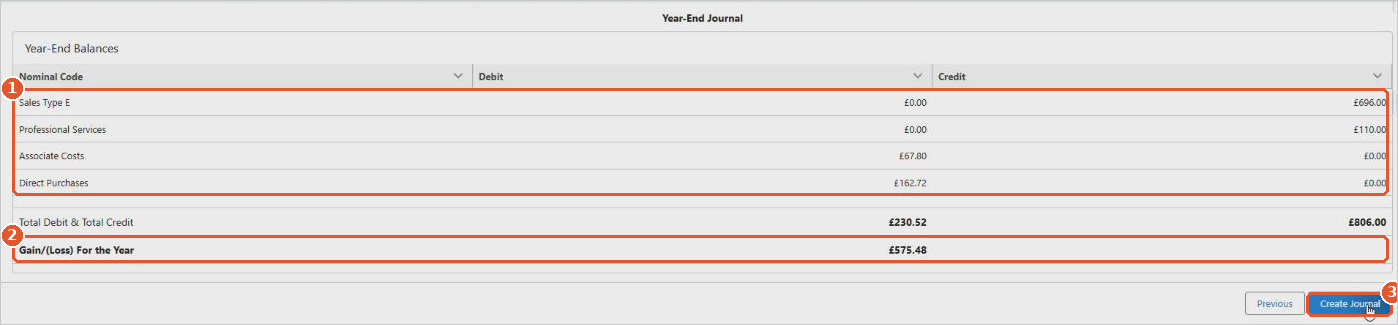
- The Year-End Balances screen lists each nominal code with a balance for the year(1), with its debit or credit balance. Gain/(Loss) For the Year(2) is the difference between the total debits and credits: your surplus or deficit for the year. Check the figures against your Trial Balance, then click Create Journal(3). To choose a different year, click Previous.
- The journal is created and its reference is shown(1). Leave Updates the company Lock date(2) ticked and set Company Date(3) to the last day of the year you’re closing. The company’s lock date moves to this date, so no one can post into the closed year. Then click Finish(4).

Check and post the journal
Click the journal reference on the confirmation screen, or open the journal from the Manual Journals tab in Aedon.Journals. It’s dated the last day of the financial year, with the reference Year-End Close.
- The journal is a Draft(1), so nothing has changed in your ledger yet.
- There is one line for each nominal code on the Year-End Balances screen(2), on the opposite side to its balance, so each code is cleared to zero.
- The last line takes the gain or loss for the year to Retained Earnings(3).
- The debit and credit totals are equal.
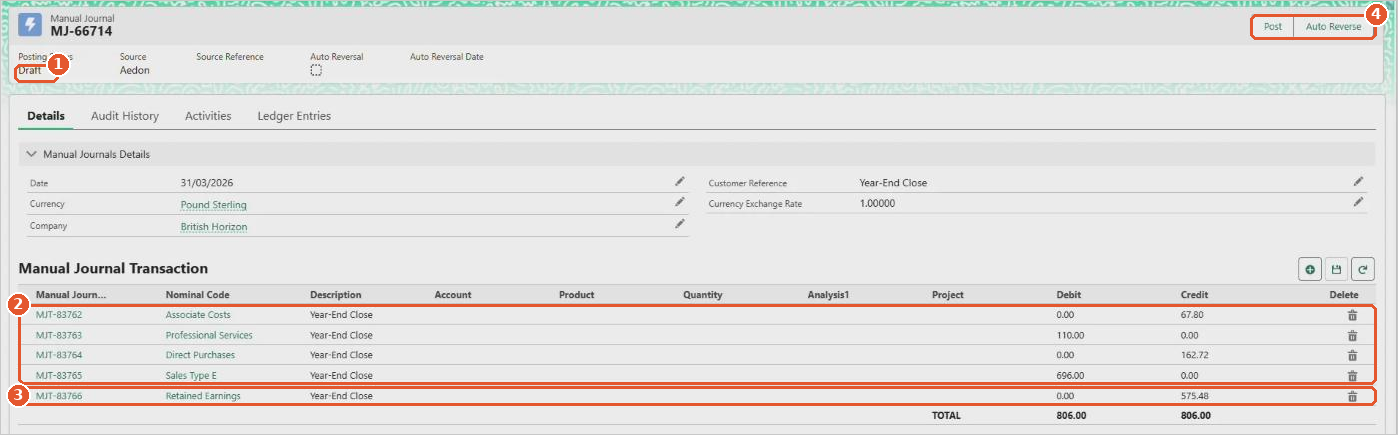
When you’re happy, click Post(4). The income and expenditure codes now show a zero balance for the year, and the surplus or deficit is in your reserves. For more about manual journals, see Creating a Manual Journal.
Need to run it again?
If you need to run the year-end again for any reason, first move the company’s Lock Date back to before the year-end, because the lock date protects every transaction dated on or before it (see Companies). Then unpost the year-end journal, delete it, and run the Year-End Journal again, setting the lock date back to the last day of the year when you finish. Only move the lock date with care: while it’s moved back, anyone can change transactions in the closed year.
Still not working? If the Year-End Balances screen is empty or the figures don’t match your Trial Balance, please raise a case and our support team will help.